


Windows normally lets you pause updates for only 35 days. This guide explains the modern Windows update schedule and shows how a short PowerShell script can set custom pause deadlines for overall, feature, and quality updates.
***
Editor’s note: A version of this article by Levinson appears on September 2, 2026 on SSPAI with the title “一日一技 | 三行代码自定义 Windows 自动更新暂停时间”. Translated and published by agreement.
TL;DR
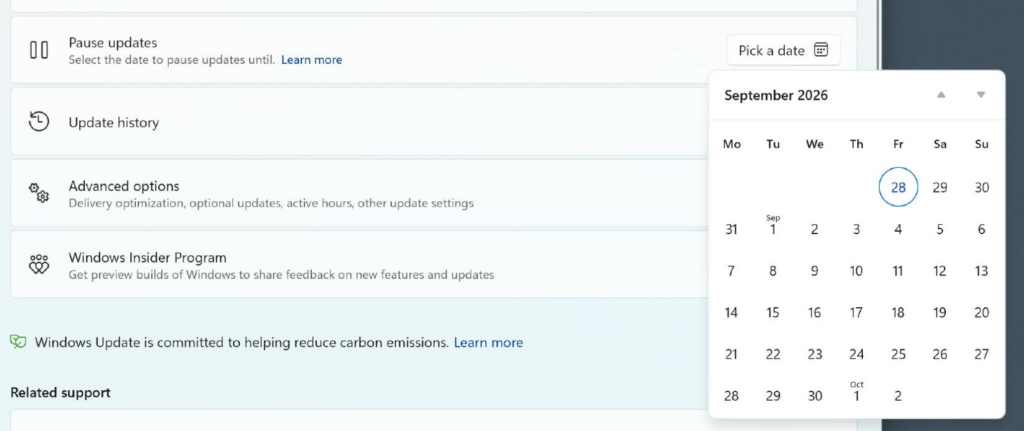
First, open Windows Settings and go to “Windows Update.” Pick any date on the calendar to pause updates.
Next, right-click the Windows logo and select “Terminal (Admin)” or “Windows PowerShell (Admin).” Enter the following code in the black window that appears, then press Enter.
$path = "HKLM:\SOFTWARE\Microsoft\WindowsUpdate\UX\Settings"
$end = (Get-Date "2030-01-01").ToUniversalTime().ToString("yyyy-MM-ddTHH:mm:ssZ")Set-ItemProperty -Path $path -Name "PauseUpdatesExpiryTime" -Value $end
Set-ItemProperty -Path $path -Name "PauseFeatureUpdatesEndTime" -Value $end
Set-ItemProperty -Path $path -Name "PauseQualityUpdatesEndTime" -Value $end
Finally, return to “Windows Update” and confirm that updates are now paused until January 1, 2030.
You can replace 2030-01-01 in the code with any date in the same year-month-day format to choose a more suitable deadline.
A Taste of Automatic Windows Updates—Whether You Like It or Not
One morning, I arrived at the office as usual, entered my password, and got started on the first task of the workday: opening SSPAI to slack off. When I spotted a glaring typo in SSPAI’s Morning Briefing—the Chinese equivalent of mixing up “your” and “you’re”—I went to take a screenshot to share with our grammar-police group chat so we could all roast it together. That was when I noticed my usual messaging app was missing from the system tray.
I did not think much of it at first. But when I opened the Start menu to launch the app, I saw that there were far fewer icons on the taskbar than when I had left work the night before.

It immediately dawned on me: Windows had updated itself.
For many people, this may be no big deal—you just reopen your apps and carry on. But I had spent nearly a month wrestling with a fairly complicated project, with all kinds of system tools, applications, and files open. I do save my work manually, but not every application necessarily makes that possible. Fortunately, all I lost this time was a single annotation in a PDF.
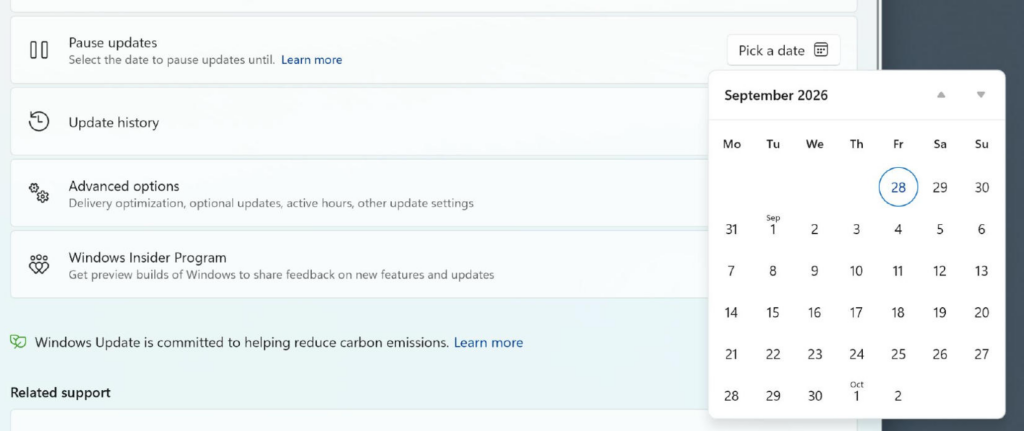
I knew that Windows lets you pause updates, but only for up to 35 days. If you are working on a large project that lasts more than a month, as I was, you eventually have no choice but to swallow an automatic Windows update.
As someone born in the 1980s, I remember computers running versions before Windows 10 being updated far less often. So I set out to find out what had changed.
How Update Policies Have Changed Across Windows Versions
Before Windows 10
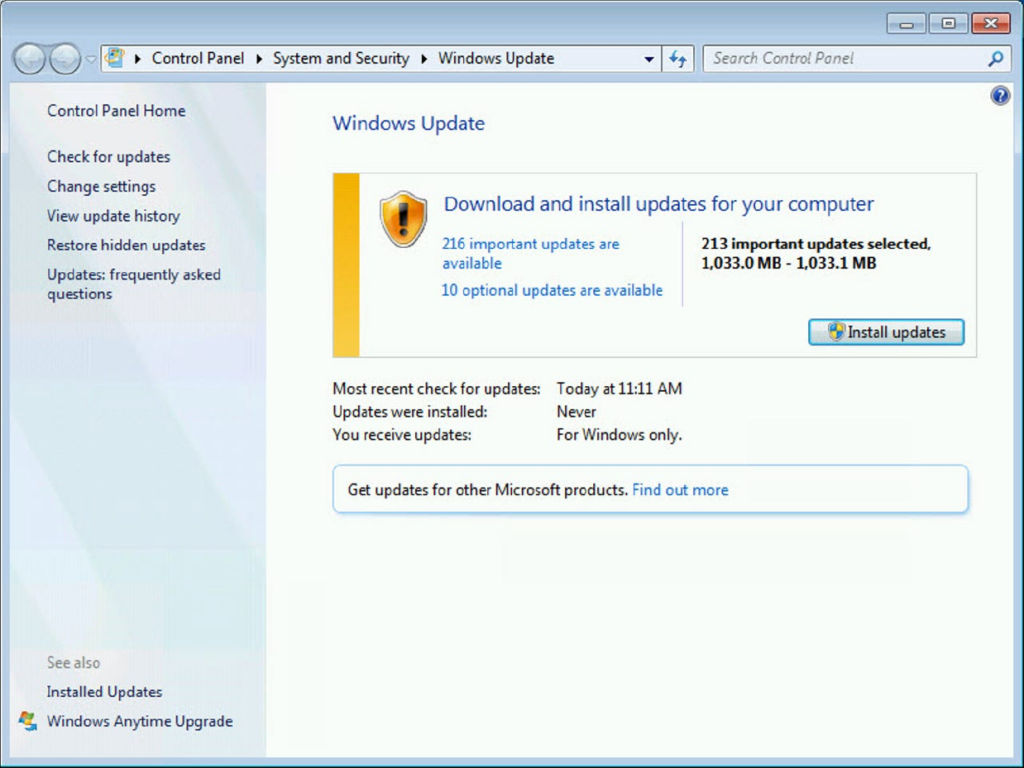
In Windows 7 and earlier versions, Microsoft divided updates into two broad categories. The first was “important and optional updates.” Important updates included security patches, bug fixes, and performance improvements, while optional updates primarily covered hardware drivers, feature upgrades, and other noncritical fixes. These updates would normally appear in Windows Update.
The other category was service-pack updates. You can think of a service pack as a major update: it would often introduce new features or improve existing ones, add support for new hardware, and update system components. Service packs arrived relatively infrequently—usually only a few were released for each version of Windows—and users had to download and install them manually.
Windows 8 followed a similar update policy to Windows 7, with the same distinction between “important and optional updates” and service-pack updates. In service-pack terms, Windows 8.1 could be seen as a service pack for Windows 8, which users had to download and install manually. For important and optional updates, however, Windows 8 shortened the update cycle somewhat as Microsoft deliberately accelerated the delivery of new features and performance improvements.
Starting with Windows 10, Microsoft adopted a “software as a service” (SaaS) update model. Under this model, Microsoft releases updates regularly to keep improving the operating system instead of issuing service packs as it had before.
Windows 10 and Later
Since Windows 10, Microsoft has always made me feel as though refusing an update simply is not an option. Update notifications pop up every few days—sometimes several times in a single day—and that frequency gives me a real headache.
Windows 10 and 11 currently receive the following types of updates:
- Feature updates, sometimes also called version updates; in Windows 11, some are known as Moment updates
- Cumulative updates, sometimes also called quality updates
- Driver updates
- Updates for other Microsoft products
- Windows Defender updates
- Optional feature updates
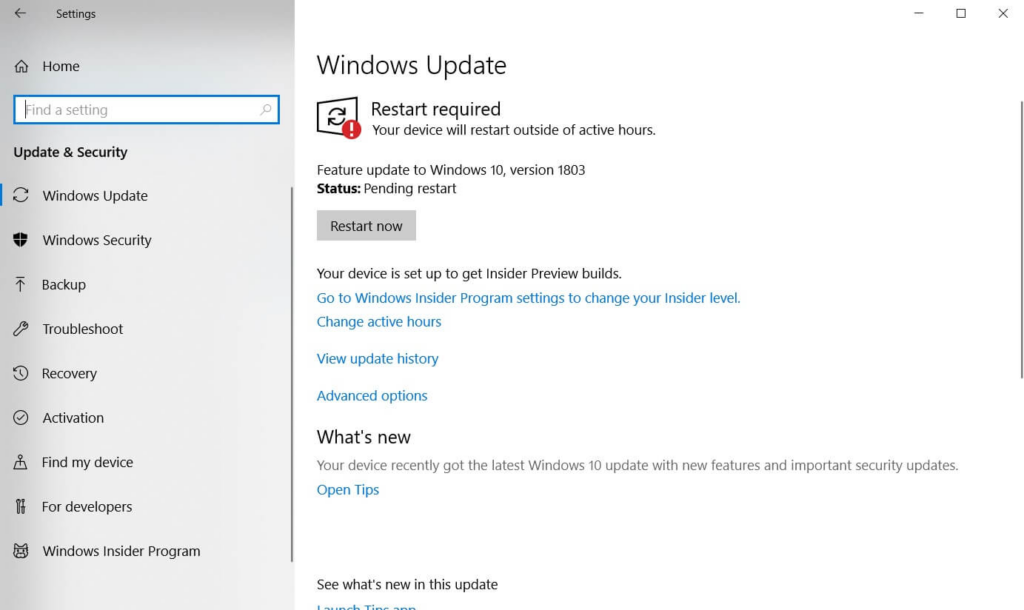
Let us start with the feature updates introduced with Windows 10. Much like the earlier service packs, these updates mainly add new features and improve existing ones. For example, the October 2017 update to Windows 10 version 1709 introduced the Fluent Design System. The October 2018 update to Windows 10 version 1809 brought features such as clipboard history and a dark mode for File Explorer.
From the launch of Windows 10, feature updates were generally released twice a year: once in spring, usually between March and May, and once in fall, usually between September and November. Users normally had to click to install them in Windows Update.
With Windows 11, features began rolling out more frequently—almost once a quarter—in updates also known as Moment updates. Feature updates, meanwhile, slowed to an annual schedule, usually in the fall.
Starting with Windows 11 22H2, however, Microsoft also began moving away from this once-a-year model of staged feature delivery. New features now arrive directly on users’ computers through monthly updates, including the cumulative updates and nonsecurity preview updates discussed below.
Cumulative updates focus primarily on system stability, security, and bug fixes. Each fix increments the revision number at the end of the Windows version number. Cumulative updates are normally released once a month, in keeping with the Windows tradition of Patch Tuesday—the second Tuesday of each month.
In emergencies, Microsoft also issues additional out-of-band (OOB) cumulative updates to address serious security, stability, or software defects. In January, March, and July 2026, for example, it released OOB cumulative updates to fix urgent problems.
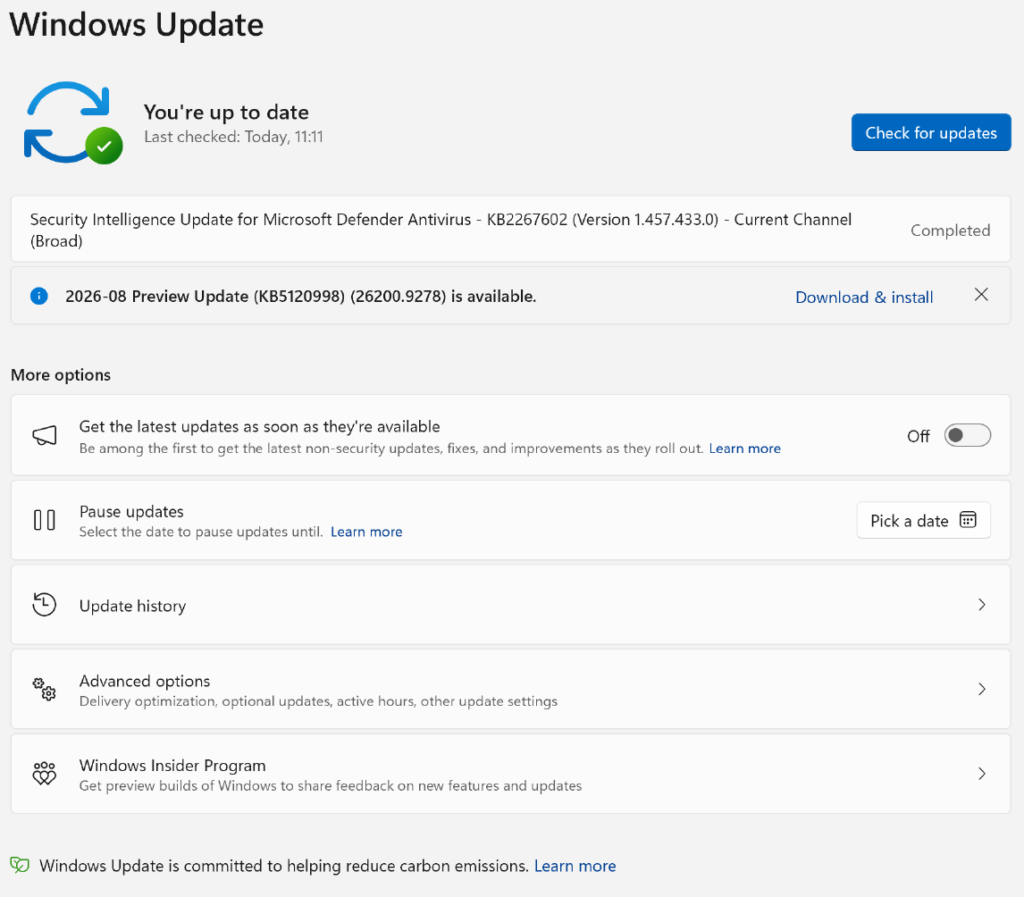
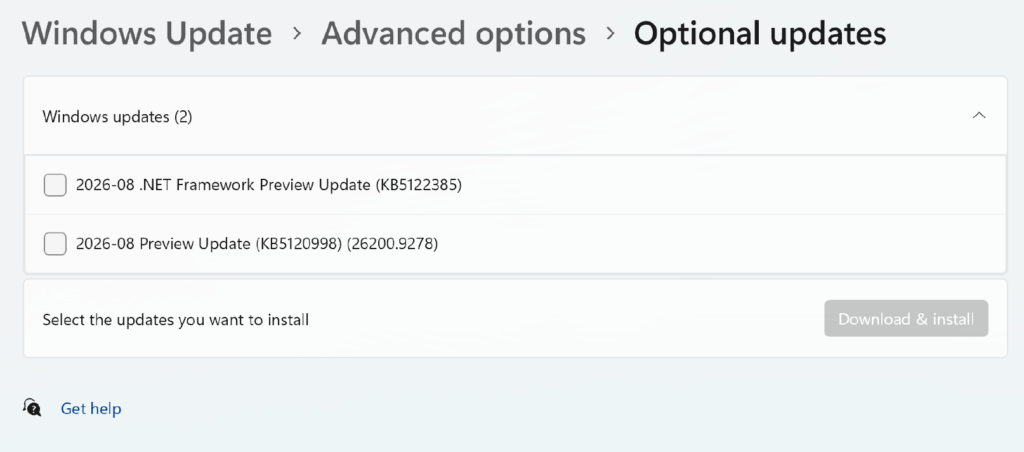
There is also an optional nonsecurity preview update each month, generally released on the fourth Tuesday. During that month, it appears only under optional updates in Windows; the same update is then delivered to users as part of the following month’s Patch Tuesday release. Optional updates may also include drivers, updates for Microsoft products, and other optional components.
Inevitably, the rapid release of new Windows versions since Windows 10 comes at the expense of system stability. The reason is simple: development teams have less time to build and test new features. Under that pressure, they may not be able to test every change thoroughly, allowing hidden bugs and vulnerabilities to slip into a new release and undermine its stability.
No Testers? Let the Users Try It
Microsoft introduced the Windows Insider Program in the Windows 10 era, inviting users around the world to preview and help test the operating system. The program initially used a ring-based system, which was renamed in 2020 as three channels: Dev, Beta, and Release Preview. On March 6, 2023, Microsoft added the Canary Channel for early work on the underlying platform.
As its testing branches grew increasingly unwieldy, Microsoft significantly simplified the Windows Insider Program on April 10, 2026. Core development and testing were reorganized into two main channels: Experimental and Beta, while Release Preview remained in place for final release validation. The former Dev Channel moved directly to Experimental. Canary ceased to exist as a separate primary channel, instead becoming different branches under Experimental as the underlying platform kernel evolved.
The reorganized Windows Insider Program uses the following channels and branches:
- Experimental Channel: Designed to test brand-new features and cutting-edge concepts under active development, this is the successor to the former Dev Channel. Features arrive here fastest, but stability and completeness are lower. Some experimental features may change or disappear at any time. Microsoft has added a Feature Flags console to this channel, allowing users to enable or disable specific experimental features in Settings.
- Experimental (Future Platforms): The most aggressive and newest branch under Experimental, it is intended primarily for testing future Windows architecture, core system components, and new APIs. It is not tied to any particular annual production release and occupies the same position as the former Canary Channel. It brings the largest changes and the greatest compatibility risks, so it is suitable only for developers, professional testers, and enthusiasts.
- Experimental (a specific Core Version, such as 26H1): A Windows kernel branch aimed at a particular hardware platform or system version. For example, devices powered by Qualcomm Snapdragon X2 chips run Windows 11 26H1, while other Experimental devices run 25H2 or 26H2.
- Beta Channel: Used to test highly polished features and experience improvements that are close to general release, Beta is considerably more stable and reliable than Experimental. Microsoft generally places features due for production release within a few weeks in this channel, making it suitable for people who want new capabilities without sacrificing day-to-day stability. Following the 2026 reorganization, Beta also eliminated the random, staggered activation of features through Feature Flags: once you install the relevant Beta build, all of its features are enabled.
With So Many Updates, What Can Stability-Focused Businesses Do?
Stability matters most in an enterprise. With patches arriving so frequently since Windows 10, a single issue that slips through testing can cause real losses. Without additional controls, Windows enterprise editions—including Windows Pro—receive updates at the same frequency as consumer editions.

For managed Windows devices, administrators can defer updates through Group Policy, mobile device management (MDM), or Windows Update for Business. Feature updates can be deferred for up to 365 days and quality updates for up to 30 days. Organizations using Windows Server Update Services (WSUS) can further control deployment timing by approving or declining individual updates.
During the Windows 10 era, Microsoft also used servicing-channel concepts such as the Semi-Annual Channel (SAC) to distinguish the stages at which enterprise devices received feature updates. After Windows 11 switched to annual feature updates, Microsoft gradually retired “readiness channels” such as SAC for staging Windows client feature-update deployments. Instead, organizations now determine when devices receive feature updates primarily through Windows Update for Business policies, target-version policies, and deployment rings.

Windows Enterprise also offers a Long-Term Servicing Channel (LTSC) edition. Microsoft normally releases a new LTSC version about every two to three years, and an LTSC installation does not receive routine feature updates through Windows Update during its support lifecycle, making it relatively more stable. LTSC versions of Windows still receive cumulative updates once a month.
Enterprise editions cannot avoid updates altogether, but at least they can postpone them for longer.
Related reading: “How Many Ways Can You Spell Your Name? A Look at Windows and macOS Version Numbers”
What Can an Ordinary User Do?
Unfortunately, our company does not have a dedicated IT department. In the Windows 11 interface, you can choose a pause date only within the next 35 days, and when those 35 days are up, you must install updates before you can pause them again. For now, however, you can still write the pause date directly to the registry:
$path = "HKLM:\SOFTWARE\Microsoft\WindowsUpdate\UX\Settings"
$end = (Get-Date "2030-01-01").ToUniversalTime().ToString("yyyy-MM-ddTHH:mm:ssZ")

Set-ItemProperty -Path $path -Name "PauseUpdatesExpiryTime" -Value $end
Set-ItemProperty -Path $path -Name "PauseFeatureUpdatesEndTime" -Value $end
Set-ItemProperty -Path $path -Name "PauseQualityUpdatesEndTime" -Value $end
$path = ...defines a registry-path variable that points to Windows Update’s UX settings.$end = (Get-Date "2030-01-01")parses2030-01-01as a date-time object. You can change it to any date that suits you..ToUniversalTime()converts the date and time to UTC..ToString("yyyy-MM-ddTHH:mm:ssZ")converts it to the ISO 8601 format used by Windows Update.Set-ItemPropertymodifies an existing value in the registry.-Path $pathspecifies the registry location to modify—the path defined at the start.-Name "PauseUpdatesExpiryTime"specifies the registry value to modify. Here,PauseUpdatesExpiryTimeis the time at which the Windows Update pause expires. The next two commands work the same way:PauseFeatureUpdatesEndTimecontrols the feature-update pause deadline, whilePauseQualityUpdatesEndTimecontrols the quality-update pause deadline.-Value $endwrites the UTC-formatted time generated above toPauseUpdatesExpiryTime, setting the Windows Update pause-expiry date to the specified time.
In short, this snippet writes a fixed pause-expiry date into Windows Update’s settings, letting you go far beyond the original 35-day limit and choose the date yourself.
Using it is simple. First, open Windows Settings and go to “Windows Update.” Choose any date on the calendar to pause updates.
Next, right-click the Windows Start logo and select “Terminal (Admin)” or “Windows PowerShell (Admin).” Enter the code above in the window that appears and press Enter. Finally, open Windows Settings, go to Windows Update, and confirm that updates have been paused successfully and that the target date is correct.
Final Thoughts
System updates really do matter. Cumulative updates for Windows patch a large number of security vulnerabilities, and if my work were not so complicated or dependent on so many applications, I would be happy to install them promptly. In my view, unless you have a genuine need, extending the pause by two or three months should be more than enough.
Just remember to click “Resume updates” once the work is done. Otherwise, the next time you are already at your wits’ end, Windows may show up yet again to remind you that an update is due.
Share: