


iOS 27 moves parental controls into a child’s very first device setup. Here’s how to create a Child Account, set content and app limits, approve websites, and manage contacts and screen time.
***
Editor’s note: A version of this article by ElijahLee appears on October 12, 2026 on SSPAI with the title “iOS 27 推出全新家长控制与儿童安全功能,这些变化值得关注”. Translated and published by agreement.
In June 2026, Apple previewed iOS 27, iPadOS 27, and its other new operating systems at WWDC26, along with a set of new parental controls and child safety features that shipped in the September software updates. To use the new parental controls, every device in the Family Sharing group needs to be on iOS 27, iPadOS 27, macOS 27, watchOS 27, or visionOS 27, and the organizer or a parent then has to update the group’s parental control settings. Otherwise, you’re stuck with the previous version of the features, or with adjusting settings directly on the child’s device.
The update centers on content restrictions, Communication Safety, Ask to Browse, and time limits. Apple has also redesigned Screen Time and moved parental controls up front, into the initial setup of a child’s account.
Set up a Child Account from the first boot
The OS 27 releases bring a more complete setup flow for Child Accounts. The age threshold for a Child Account varies by country or region. In mainland China, children under 14 need a parent or guardian to create an Apple Account for them, and a Child Account can be used until the child turns 18. Apple Accounts now fall into three age groups:
- Child: 13 and under
- Teen: 14–17
- Adult: 18 and older
When setting up a new device for a child or teen, parents can connect the account to Family Sharing right then and there. It feels a lot like setting up an Apple Watch or HomePod for the first time: scan an animated pattern with the parent’s device, and the child’s device joins Family Sharing.
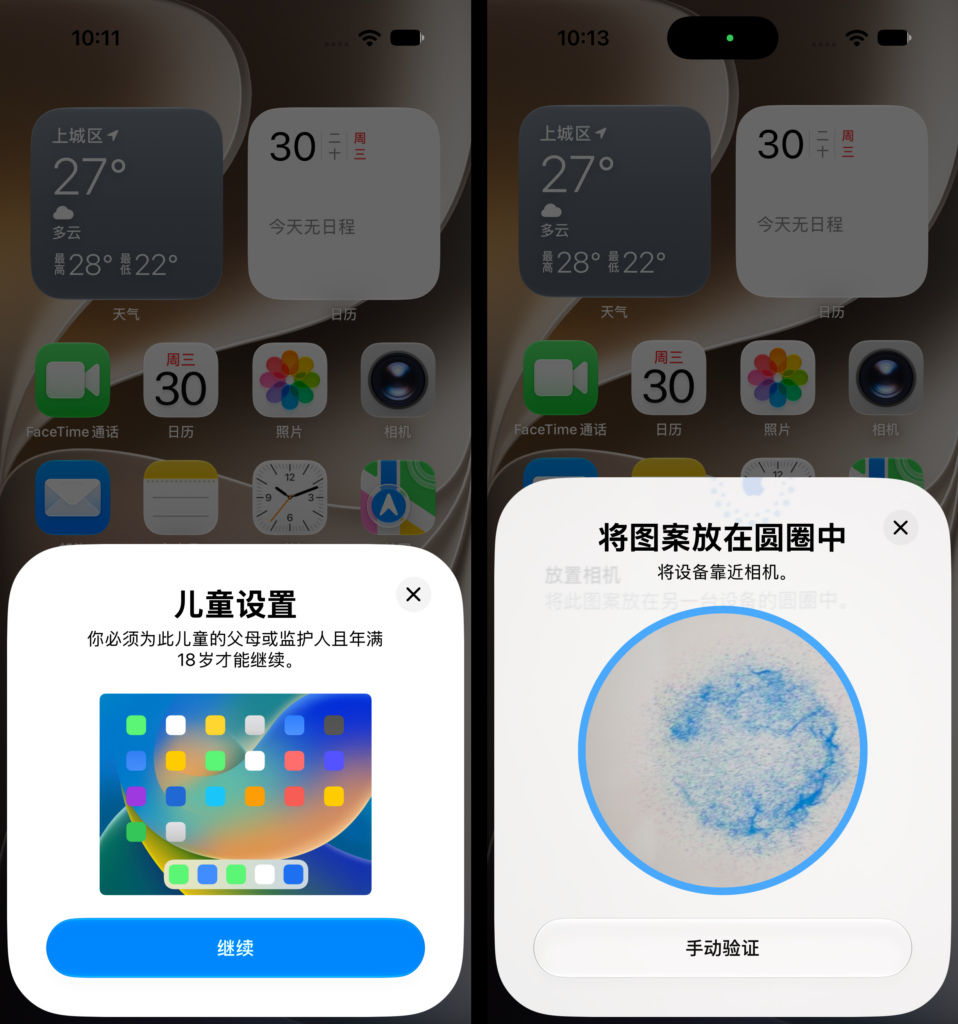
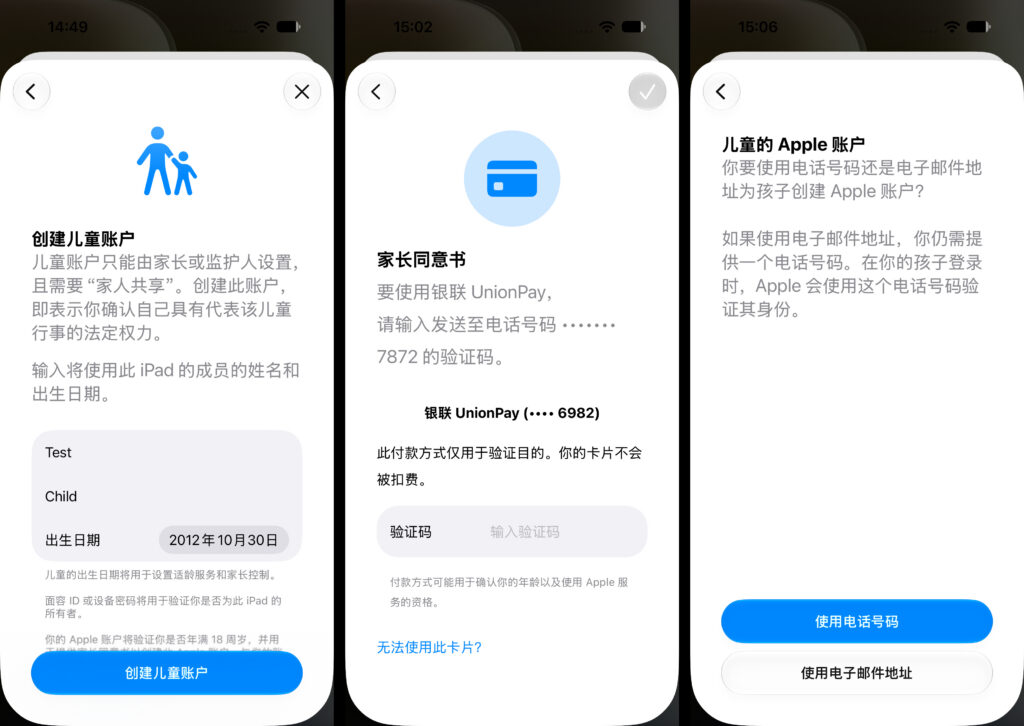
Parents have to prove they’re adults before they can create an Apple Account for a child. In mainland China, that means adding a credit card as a payment method on the parent’s own Apple Account. Debit cards, Alipay, and other methods don’t qualify. In some other regions, parents can also verify by scanning a passport, among other options.
Here’s how setup works:
- Enter a date of birth. You must enter the child’s date of birth when creating a Child Account. It’s used to set content and media filters and to determine the scope of parental controls.
- Give parental consent and agree to the Family Privacy Disclosure. Apple uses the payment method on the parent’s Apple Account to confirm that the parent is an adult.
- Set up the child’s Apple Account. Create the account with a phone number or an email address (required). Even if you use an email address, you’ll still need a phone number. Once that number is verified, you can set a password for the account.
One important tip: create the child’s Apple Account with an email address and add the phone number afterward. Otherwise, you may hit a mysterious bug that breaks some parental controls.
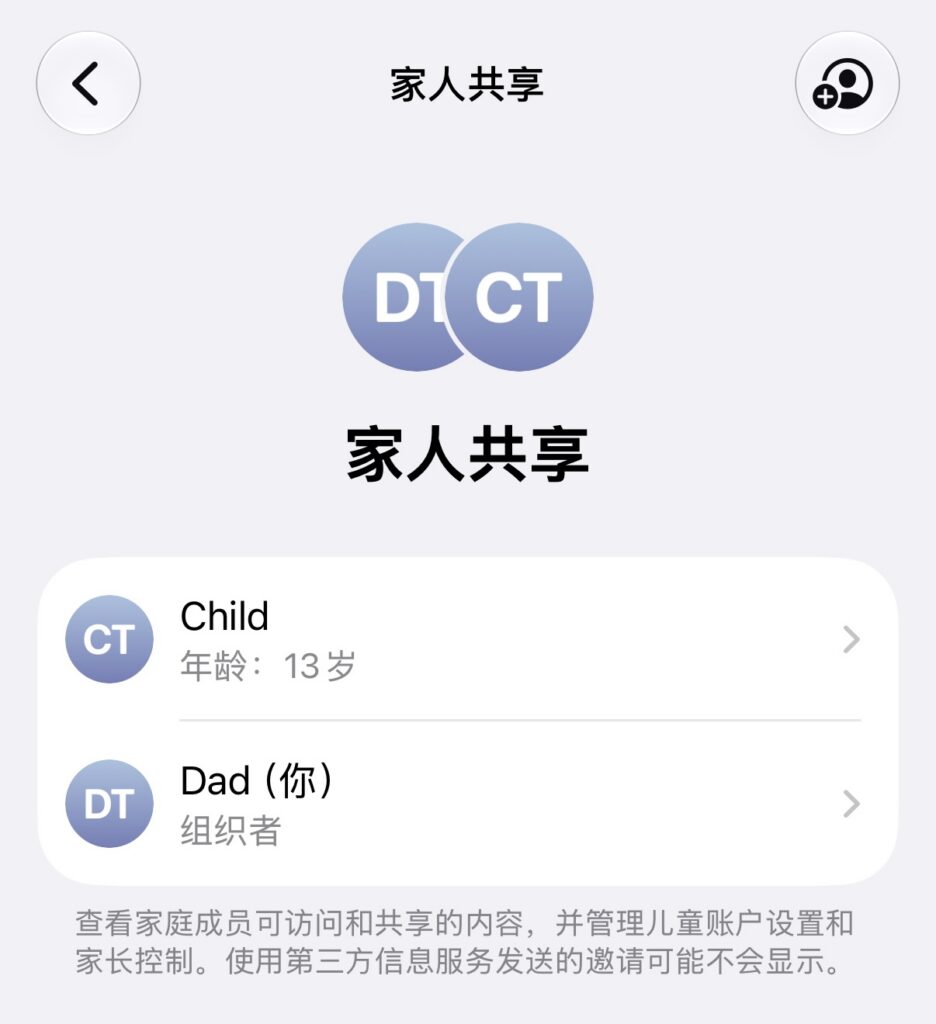
Once the child’s Apple Account is created and added to Family Sharing, the parent will see them listed as a family member on their own device.
A better setup experience for Child Accounts and parental controls
When activating a new device, parents can configure parental controls for the Child Account directly from their own iPhone, keeping the child safe as they communicate, use apps, and browse the web. That way, a basic but complete set of rules is in place the moment a child first gets an iPhone or iPad.
Content restrictions: What can your child access?
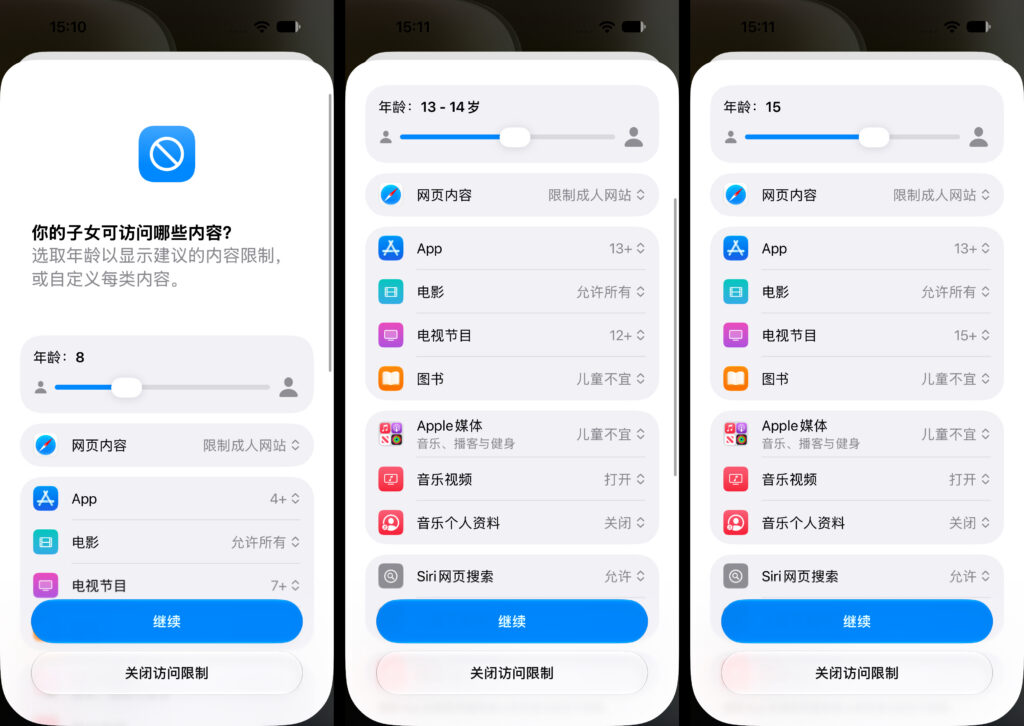
First up is content restrictions. This screen offers an age filter that sets the age rating for content and services, including web content, apps, movies and TV shows, books, and Apple media.
The filter ranges from “4 and under” to 21. As you slide it, the content options below adjust their filters to match. For example, Limit Adult Websites is on by default for Child Accounts under 18 (exact age rules may vary by country or region), and age ratings for apps and TV shows follow the age filter to keep content appropriate.
You can set content restrictions during device activation and change them later in Family Sharing on the parent’s iPhone.
App restrictions: Choose which built-in apps your child can use
Once the Child Account is created, parents can choose exactly which apps the child can access on the device. Apple has also streamlined the process so configuration goes smoothly.
- During initial setup, parents can use Setup Assistant to pick which system apps the child can access, making it easy to finish setting up the device.
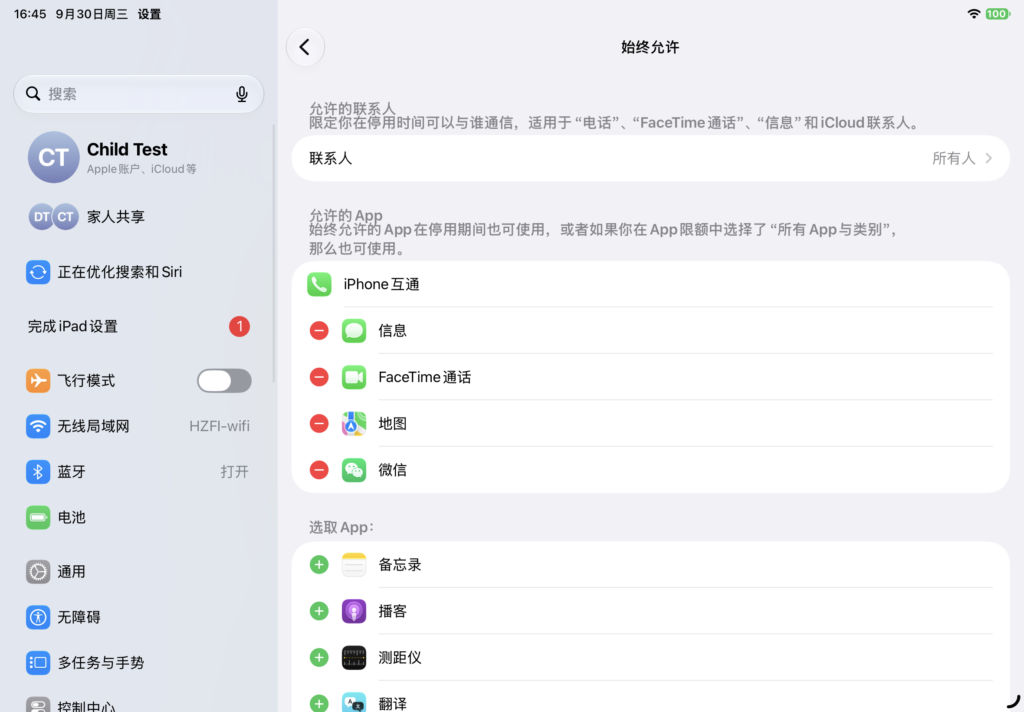
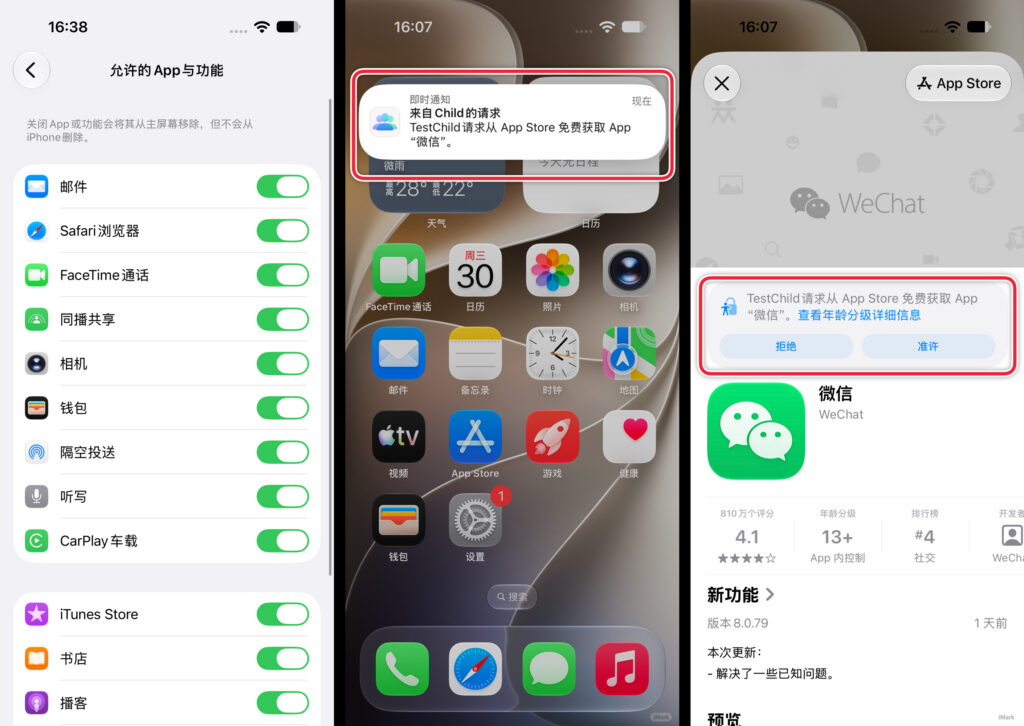
- After setup, parents can allow or block specific apps in Apps & Websites. Always Allowed sets apps that aren’t affected by schedules or time allowances.
- Apps that aren’t allowed disappear from the Home Screen, but they aren’t deleted.
If the child wants to download a new app from the App Store, they need a parent’s approval, whether the app is free or paid or it’s an in-app purchase. Parents can also stop the child from deleting apps. From the moment a new device is activated through years of everyday use, parents keep full control over which apps their child can use.
Ask to Browse: Approve the websites your child can visit
App controls are fairly strict, but Safari has been something of a loophole. Previously, parents could mostly limit adult websites or restrict browsing to a set of allowed sites. iOS 27 adds Ask to Browse. With it turned on, a child needs a parent’s approval before visiting a new website in Safari or other supported browser apps, and the parent can allow or decline the request from their own device. It works much like Ask to Buy does for apps, across iPhone, iPad, and Mac.

Communication Safety: Protect kids from sensitive images and videos
Communication Safety checks photos and videos that a child receives or tries to send in supported places such as Messages, AirDrop, and FaceTime. When it detects nudity, gore, or violence, the system shows a warning, blurs the content, and offers ways to get help. Gore and violence detection doesn’t apply to live FaceTime calls, only to FaceTime video messages. The feature is on by default for users under 18, though the exact age may vary by region.
The analysis is done mainly with on-device machine learning. Apple isn’t told the results and can’t access the photos or videos.
Communication Limits: Who can your child contact?
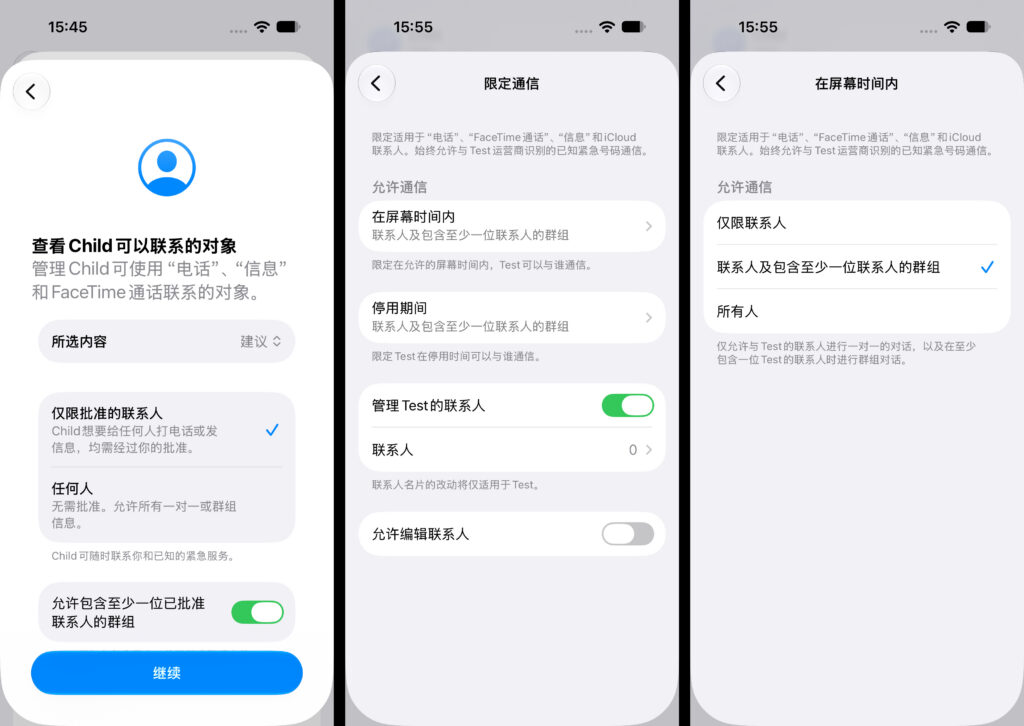
Just as with apps, parents can manage who their child can contact in Messages, FaceTime, Phone, and other apps.
There are separate settings for screen time and downtime. The logic is simple: during screen time, the child can use the device fairly freely, so you can allow a wider circle of contacts. During downtime, you can limit communication to contacts only, so the child can still reach family in an emergency.
Parents can also manage the child’s contacts from their own iPhone, including whether the child can edit them. If you turn off Allow Contact Editing, the child has to send you a request before adding a new contact, and you decide whether to approve it.
A redesigned Screen Time, plus new Schedules
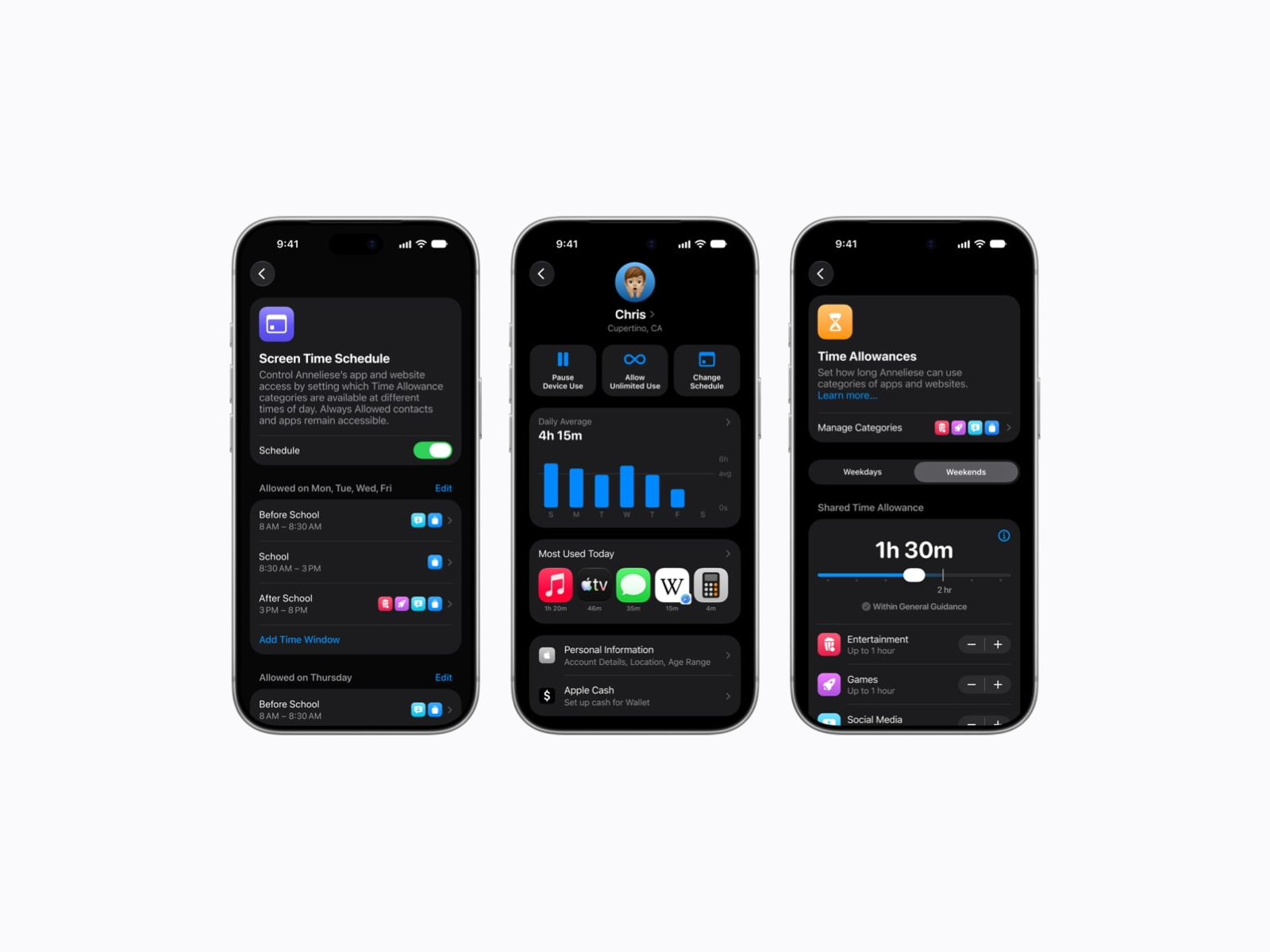
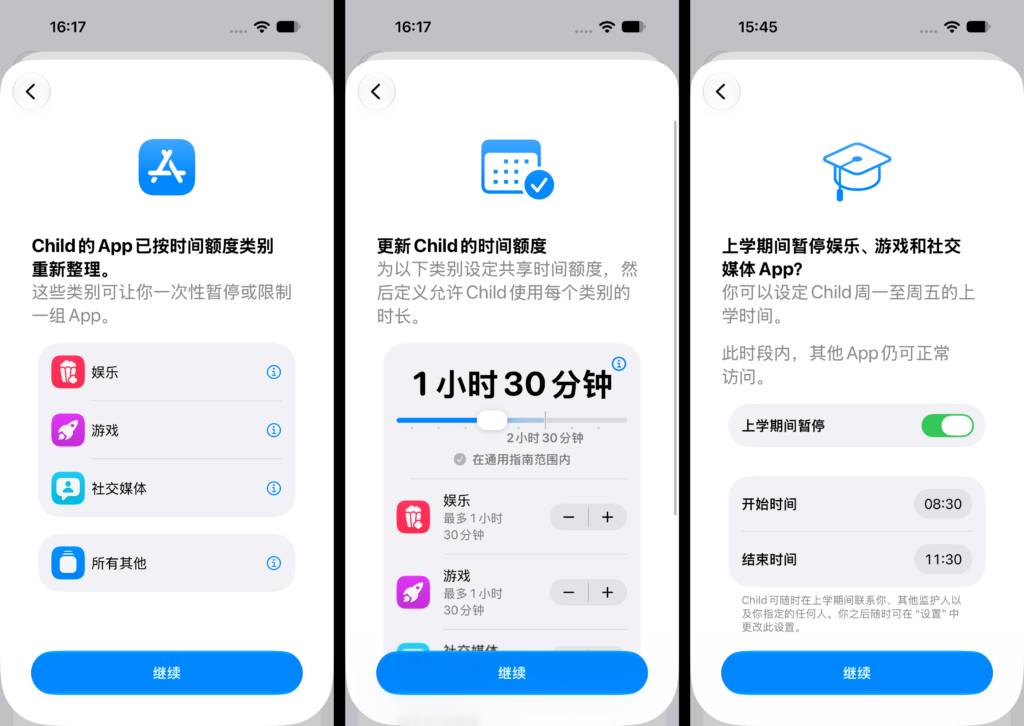
Screen Time and Time Allowances have been reworked in OS 27. Parents can now see at a glance how long their child uses the device on average and which apps they use most, and can adjust time limits for apps and web content right from that screen.
Time Allowances let you manage usage limits in bulk by app category. Apple also offers age-tailored time recommendations based on expert research to make managing limits easier for parents and kids alike.
Schedules work a bit like Focus modes: you can set different limits for different situations and times of day. For example, you could pause games during the school term and allow them again over the holidays.
Wrapping up
iOS 27 further refines parental controls and the Child Account system. Managing a child’s device is gradually shifting from “restrict and monitor” toward a more system-level approach of “manage and protect.”
The new features span time, apps, content, communication, and device use. With finer-grained schedules, content detection, and permission controls, parents can set up more flexible, complete rules that fit their child’s age and how they use their devices.
Share:
Tags