
What makes Apple Sports so compelling is its deliberate restraint: it directs your attention entirely to the contest itself. You see when the match kicks off, the live score, key in-game events, and post-match statistics. If you ever feel like indulging in trade rumors or fan debates, you can seek them out elsewhere on your own schedule.
***
Editor’s note: A version of this article by Vanilla appears on October 27, 2026 on SSPAI with the title “Apple Sports:不看新闻、不聊球,只看我关心的比赛”. Translated and published by agreement.
Over the years, however, life priorities shifted. Sifting through algorithmic clickbait, player gossip, and comment-section vitriol began to feel like a chore. When Apple introduced its standalone Apple Sports app in 2024, I quickly realized it was the exact antidote I had been looking for.
What makes Apple Sports so compelling is its deliberate restraint: it directs your attention entirely to the contest itself. You see when the match kicks off, the live score, key in-game events, and post-match statistics. If you ever feel like indulging in trade rumors or fan debates, you can seek them out elsewhere on your own schedule.
Then, let’s figure out how to configure it from scratch into an elegant, distraction-free matchday dashboard.
Rich Sports Coverage Without the Clutter
A Broad Roster of Leagues and Disciplines
When you open Apple Sports for the first time, an onboarding walkthrough prompts you to pick your favorite leagues and teams. Once on the main screen, you can discover more clubs at any time by tapping the menu icon in the top-right corner and selecting Search. On any team’s search card, tapping the Star icon immediately favorites them. To follow an entire league, tap into its league detail page and star it from the top-right corner.

To adjust your preferences down the road, open the top-right menu and choose Edit. From here, you can reorder leagues and clubs, remove past selections, or pin new ones.

My personal preference is to favorite only my core teams. Most clubs play just once or twice a week; if you pin all of Europe’s top five leagues simultaneously, your dashboard is instantly inundated with dozens of fixtures. I only pin an entire league table toward the end of a season when relegation scraps and title races heat up.
Apple Sports already covers an impressive breadth of competitions. Alongside North American fixtures like the NBA, NFL, and MLB, football supporters will find the Premier League, La Liga, Serie A, Bundesliga, Ligue 1, UEFA Champions League, Europa League, J.League, and Saudi Pro League. Motorsport and individual sports—including Formula 1, tennis grand slams, and the PGA Tour—are also well represented.
Once favorited, you can use the top-right menu to switch between Home, My Teams, or individual league views. The Home tab consolidates everything you care about. If you want to focus exclusively on your primary club, jump to the My Teams tab; if you are curious about a marquee matchup in another competition, browse by category without having to bookmark the clubs first.

Clean Match Results and Box Scores
Once your favorites are set, the match schedule becomes your daily command center. Apple Sports organizes fixtures into three clean chronological views:
- Yesterday: catch up on overnight results;
- Today: see what is playing right now or later this evening;
- Upcoming: preview kickoff times for the week ahead.
Applying team or league filters narrows this schedule down to a clean snapshot.

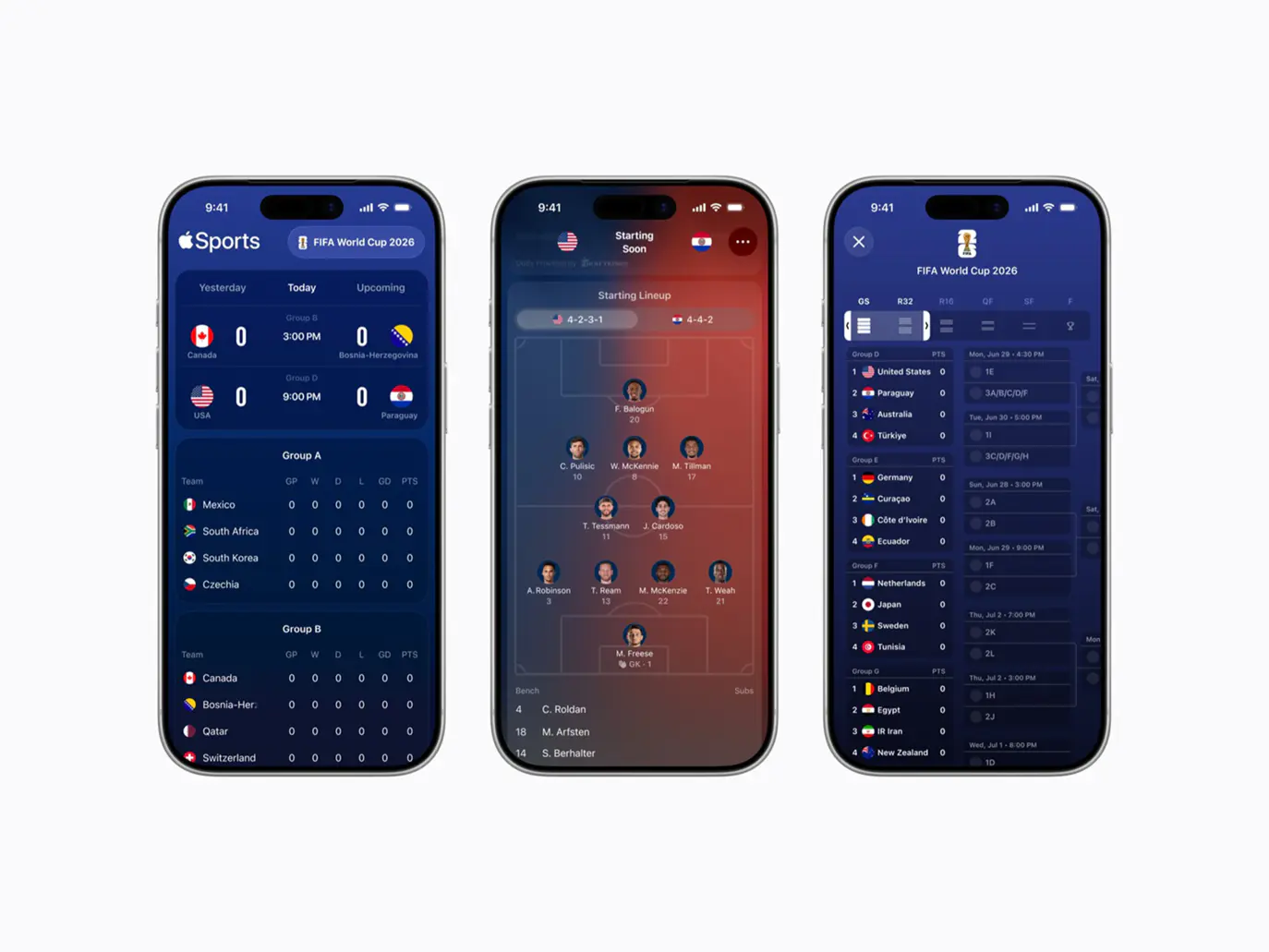
Tapping into a single fixture unlocks the meat of the experience. Depending on the sport, you will find post-game box scores, starting lineups, play-by-play timelines, and live league tables.
If I wake up to an unexpected blowout loss, I immediately scan the stats and timeline: Was there an early red card? Did the defense capitulate in the second half? While cold statistics cannot replace the visceral drama of a live broadcast, they provide busy professionals with an instant, factual summary of how a match unfolded.

The football lineup view is especially well executed. Rather than presenting an uninspired list of names, Apple renders an intuitive tactical pitch diagram showing the starting formation.
Key in-game events—goals, substitutions, yellow and red cards—are pinned directly to each player’s jersey icon. Most premier football leagues support this visual formation layout, making pre-match tactical checks far more readable at a glance.

For cup competitions like the UEFA Nations League or tennis Grand Slams, the integrated tournament trees and group standings prove invaluable. Group stages show live points, goal difference, and win-draw-loss records. For tournament knockout phases, the bracket tree lets you trace advancing paths effortlessly without running separate searches for each leg.

Dynamic Play-by-Play and Live Game Tracking
During live play, the home tab surfaces real-time scores and clock updates. When several matches run simultaneously, you can swipe horizontally between active game cards without repeatedly bouncing back to the main menu.

Rather than just displaying the scoreline, Apple Sports tracks how the match progresses. Importantly, this data is tailored to the specific cadence of each discipline rather than forced into a rigid, one-size-fits-all container.
American football offers a prime example. In the NFL and NCAA, Apple pairs its play-by-play logs with dynamic field position graphics, displaying down, distance, and exact yard lines. Tennis matches track individual points within each game. Respecting the unique scoring structure of each sport makes the data genuinely engaging.

System Integration: Widgets and Live Activities
Beyond opening the app directly, the real magic of Apple Sports comes from its tight integration with iOS system features: Widgets for monitoring upcoming fixtures, and Live Activities for tracking games in real time.
Widgets
The Sports Widget allows you to monitor favorite clubs or individual league schedules directly from your Home Screen or Today View.
To add one, long-press an empty area on your Home Screen to enter jiggle mode, tap Edit > Add Widget, search for Sports, and pick your preferred size. To place it in the Today View, swipe right from your Home Screen or Lock Screen and repeat the process.

I recommend placing widgets based on how often you check in. Teams you follow daily belong on your primary Home Screen. If you only check casually, tuck the widget into the Today View, or stack it with other widgets of the same size to save screen real estate.
If you want a widget dedicated to an entire competition, add the League widget, long-press it, select Edit Widget, tap Select League, choose your league, and tap outside to confirm.

Live Activities
Live Activities are ideal when you cannot watch a broadcast live but want ambient score updates.
For a single fixture, open the match page and tap the Live Activity icon. If the game has not yet kicked off, it will be queued automatically and illuminate your Lock Screen the moment play begins.
For your core club, open the app’s top-right menu, tap the gear icon to open Settings, and toggle on Live Activities by team. This automates the process so you never have to manually arm individual fixtures before kickoff.

If you have enabled Live Activities in the app but nothing appears on matchday, navigate to your iPhone’s Settings > Apps > Sports > Live Activities and ensure that Allow Live Activities is switched on.
On iPhone models equipped with the Dynamic Island, active scores remain visible in the pill cutout while using other apps. Long-pressing the Dynamic Island expands a detailed card showing current possession, clock, and scores. Tapping it jumps straight into Apple Sports.

If you want to silence updates for a specific game without modifying your broader preferences, tap the Live Activity button inside the match card to turn it off, or swipe left on the Lock Screen banner to dismiss it.

Apple Watch owners running watchOS 11 or later paired with an iPhone on iOS 18 will automatically receive these Live Activities in the Smart Stack on their wrist. While there is no standalone Apple Watch Sports app yet, the wrist glance is remarkably convenient.
For desktop setups, scores can even sit silently in the macOS menu bar. If your Mac is running macOS Tahoe 26 or later with iPhone Mirroring configured, allowing Live Activities from iPhone in System Settings will pin live scores directly to the upper-right corner of your Mac display. As long as your iPhone is powered on nearby, the menu bar updates quietly in the background—perfect for discrete check-ins during working hours.

Closing Thoughts
I still love sports, and I still enjoy reading long-form tactical breakdowns and post-match analysis. What I no longer enjoy is losing hours every week to notification clutter, algorithmic outrage, and endless forum debates. When my schedule permits, I will happily sit down for ninety minutes or read in-depth reporting; when work is busy, I simply want to know how my club performed so I can get back to my day.
That is why Apple Sports resonates with me. It does not attempt to be an all-encompassing social network or an ad-heavy media empire. It provides a clean, reliable window into the games I care about—and that is more than enough.
Share:
Tags