
Rosetta 2 has less than a year left. A hands-on guide to keeping Intel-only Mac apps working — through open-source replacements, wrapped web apps, and Wine.
***
Editor’s note: A version of this article by 化学心情下2 appears on November 16, 2026 on SSPAI with the title “Rosetta 2 即将退役,Mac 老应用何去何从?”. Translated and published by agreement.
Apple has changed architectures on the Mac more than once. The best-known shifts are the 2005 move from PowerPC to Intel x86, and the Apple silicon migration that began in 2020, taking the Mac from Intel x86 to ARM64.
Fittingly, the technology that carried the load in both transitions was called Rosetta, named after the stone that let archaeologists decipher Egyptian hieroglyphs. I think Apple meant it as a metaphor: during an architecture change, a code translation layer matters a great deal.
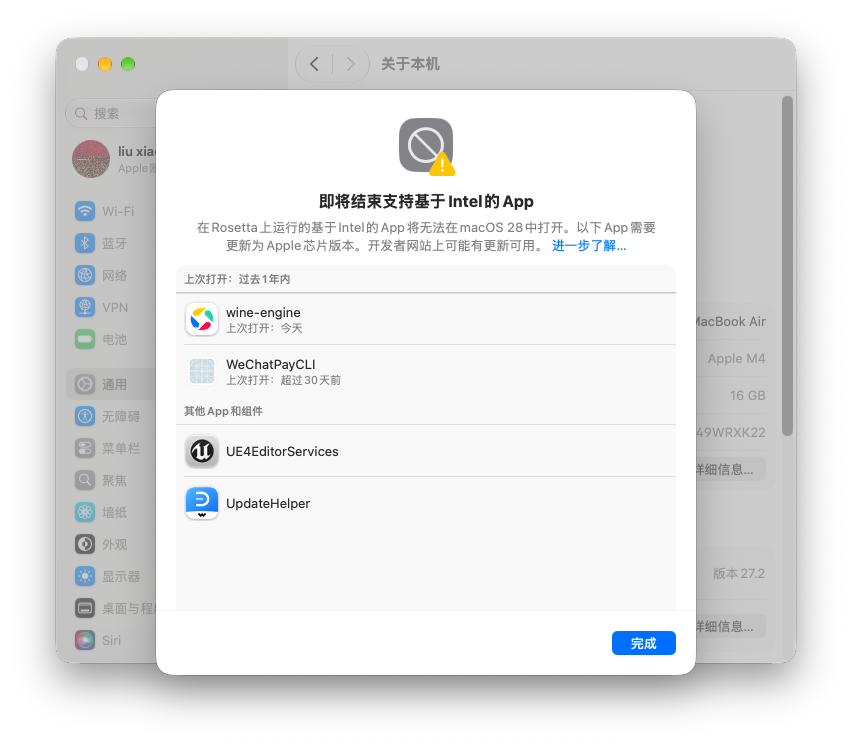
Just as the first Rosetta retired once its job was done, the Mac’s move to Apple silicon that started in 2020 is now winding down.
At WWDC25 on June 9, 2025, Apple said macOS Tahoe would be the last release to support Intel Macs. At WWDC26, it added that macOS Golden Gate would be the last version to ship the complete Rosetta 2. In other words, in macOS 28, expected in 2027, Rosetta 2 may survive only to keep a handful of Intel-only games running—the ones whose developers stopped updating them long ago.
Rosetta 2 is retiring. Are the apps ready?
As of publication, the full retirement of Rosetta 2 is less than a year away. But have the Mac apps we use every day actually gone native on Apple silicon?
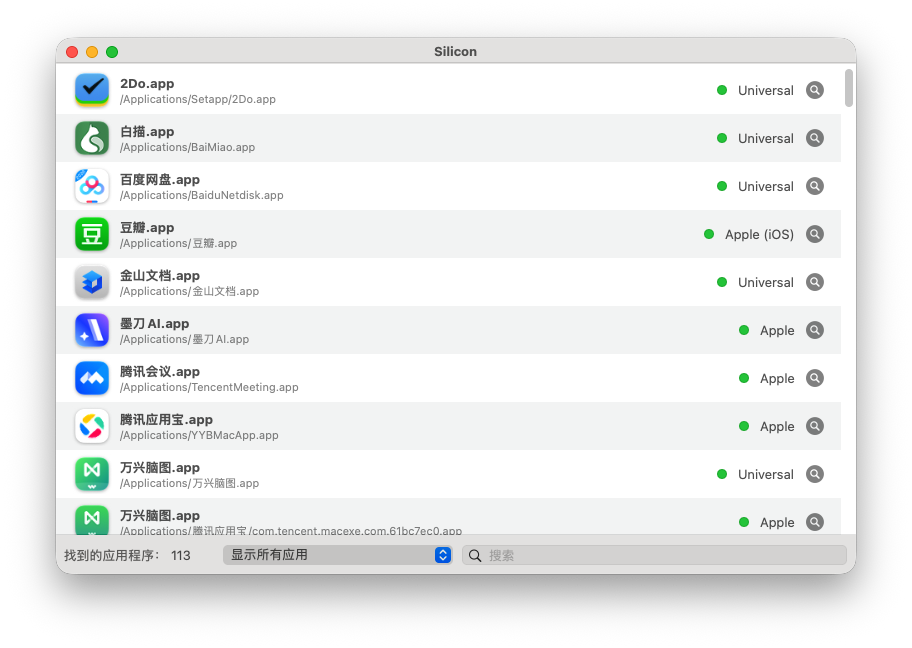
To find out, I turned to Silicon, a macOS tool from DigiDNA that scans every installed app and reports which architectures it supports. It arrived alongside the first M1 Macs. Compared with six years ago, when the list was wall-to-wall x86-64, almost everything now ships as a universal binary or has gone fully native (marked “Apple”). Bare x86-64 holdouts are few and far between.
Few as they are on my machine, they will stop working entirely once macOS 27 arrives. So how do you keep these old tools around after Rosetta 2 is gone?
Three ways to survive the post-Rosetta 2 era
After some experimentation, I worked out three approaches and successfully replaced the last few x86-64 apps on my Mac.
Find an open-source or third-party replacement
Using software is really about consuming the service behind it. Plenty of services now expose APIs that let third-party developers build on their platform.
Take Sonos, which I use constantly. For six years the company put all its development effort into mobile and never shipped an Apple silicon Mac client—you were stuck with a fairly basic web player. Fortunately, Sonos’s API ecosystem is healthy enough that I soon found Choragus, an open-source Mac client built on the official API.
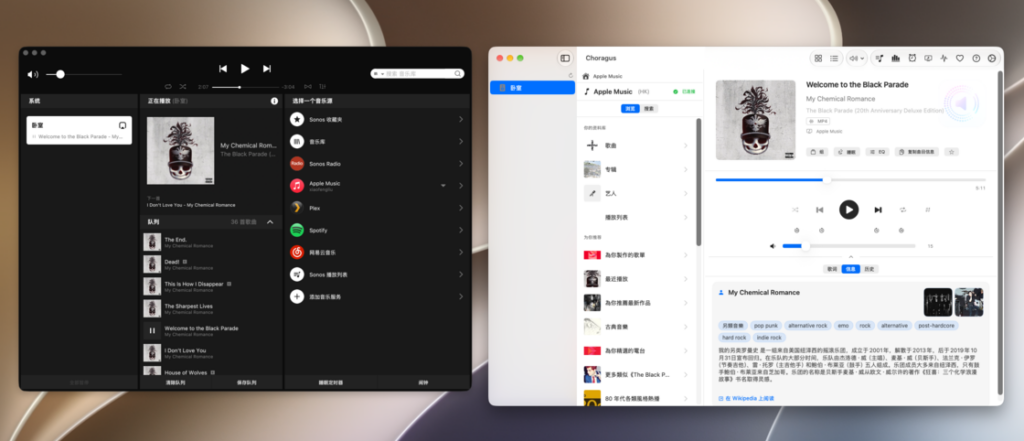
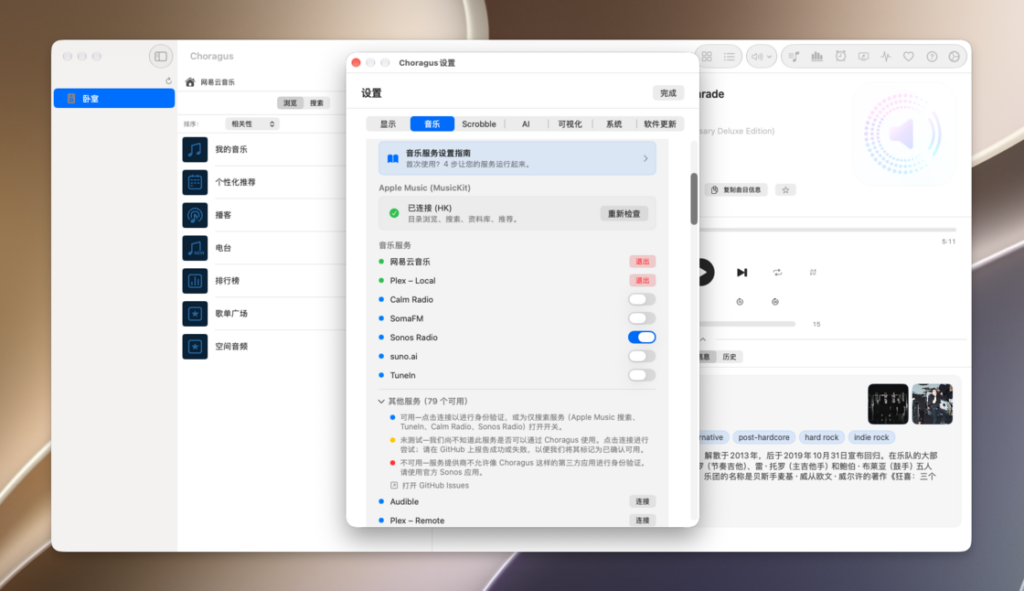
Choragus works much like the official app: the same classic three-pane layout, quick access to local Sonos devices, and support for adding streaming services. Because each service opens its API to a different degree, support varies. Choragus marks fully compatible services with a blue dot—Sonos Radio, Suno.ai, Spotify—and unverified ones with a yellow dot, such as NetEase Cloud Music, which syncs and plays your playlists fine but whose search does not work at all.
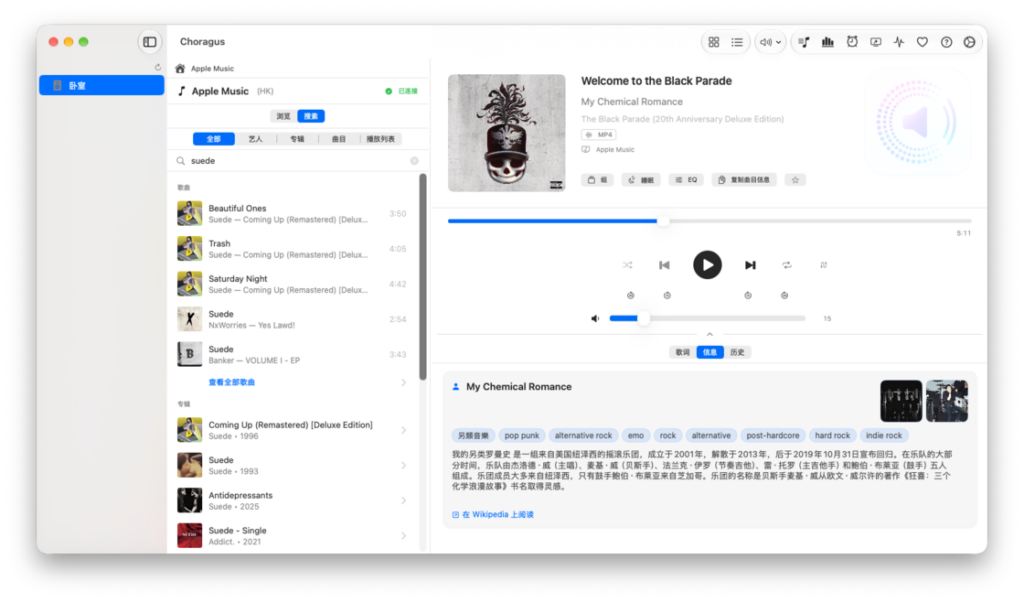
Against the official client, Choragus has one advantage: it can call the system-level MusicKit framework, so Apple Music is woven in directly, with search, recommendations, and your library. If you live in Apple Music, controlling a houseful of Sonos speakers through Choragus is the better experience.
Third-party tools have limits, though. Choragus bills itself as a playback controller and does not handle device management. Anything low-level—joining a speaker to Wi-Fi, adding hardware, updating firmware—still has to happen in the official mobile app.
Wrap a web app with Unite Pro
For office work I mostly use Microsoft 365, but team collaboration means I constantly open WPS documents that colleagues share. To keep things light, I skipped the full WPS suite and installed the standalone Kingsoft Docs client.
WPS has long been native on Apple silicon, but Kingsoft Docs—the lightweight collaboration client—seems to have been forgotten. Its macOS version has been x86-64-only for years. The web version is complete enough, though, so all it takes is wrapping the site in a multi-tab PWA, and the x86-64 build can go.
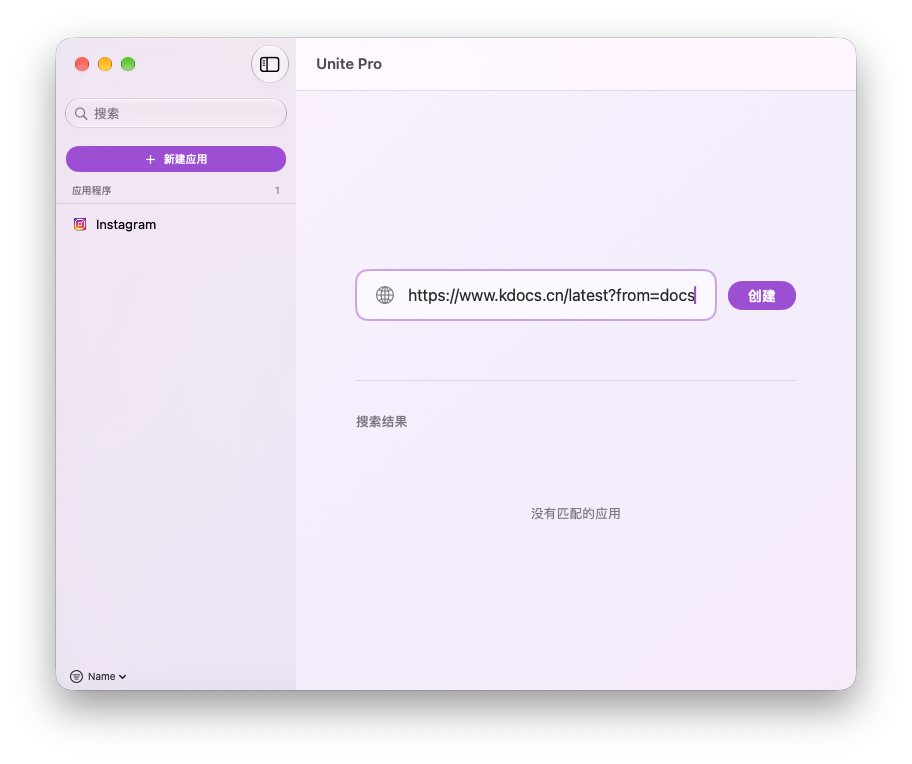
My tool of choice is Unite Pro, the web-app wrapper included in a Setapp subscription. Launch Unite Pro, click to create a new app, paste the Kingsoft Docs URL into the address field, and hit create.
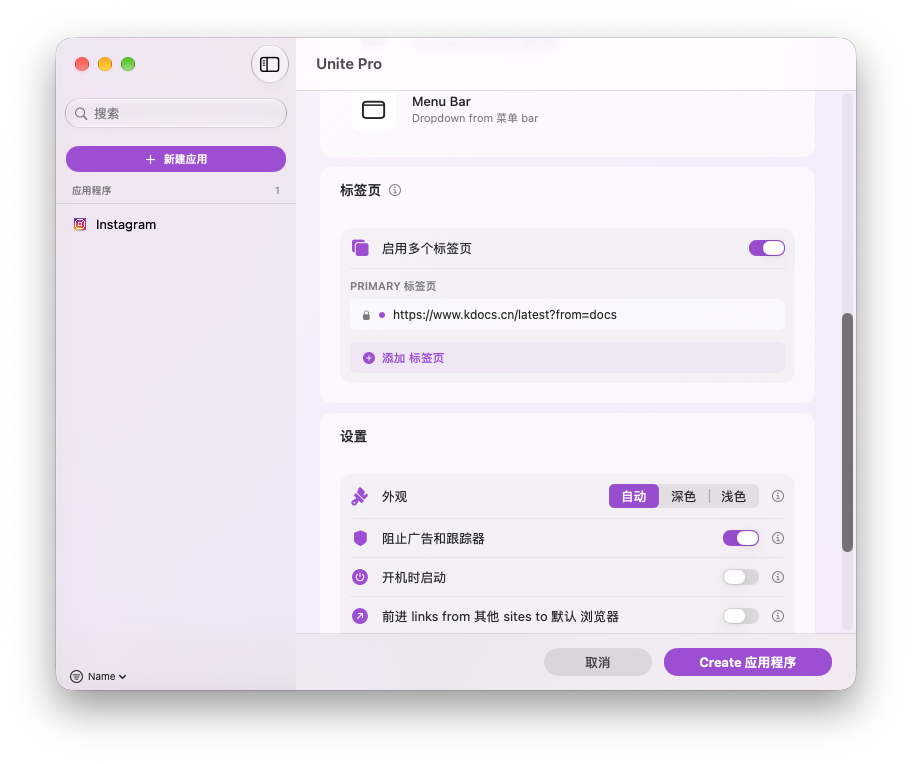
A few adjustments in the properties panel: name it “Kingsoft Docs”, keep the default icon if you like, set the display mode to Normal, and—the important part—turn on tabs so multiple documents can sit side by side. Leave the advanced options alone, click “Create Application” at the bottom, and wait for the build to finish.
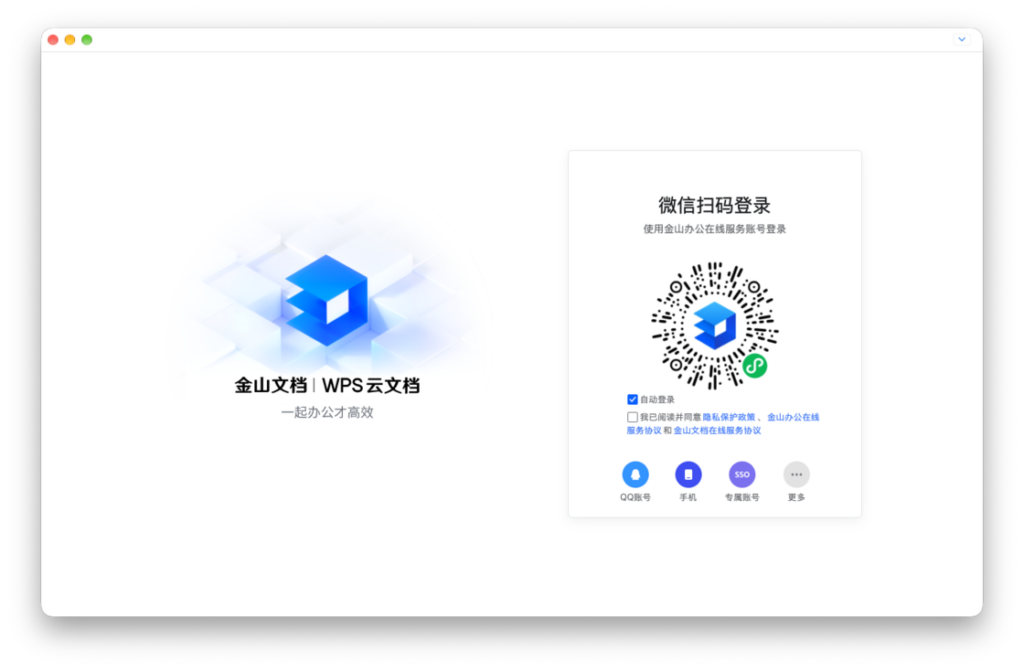
The self-wrapped PWA looks and behaves almost exactly like the official client. New and existing documents open in their own tabs; only the tab controls feel a bit less polished than the real thing.
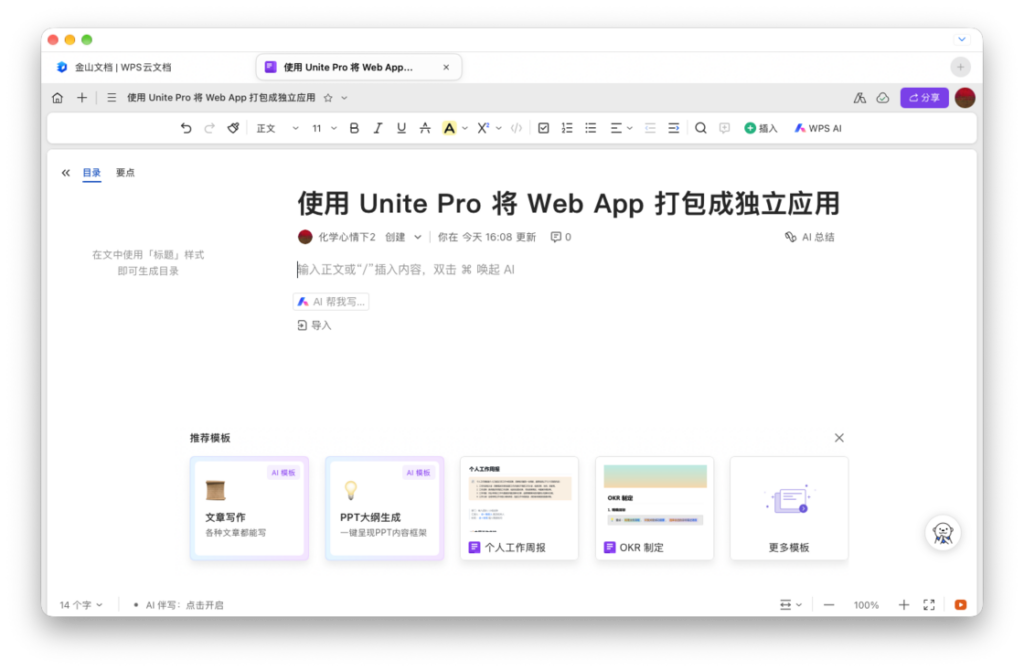
Wrapping has its own problems. Unite Pro is paid software, which is a hurdle, and the wrapped app lacks the enterprise features of the official client. But if all you need is writing and collaboration, as it is for me, this lightweight substitute does the job.
Run the Windows version with Tencent MyApp for Mac
Not every tool has an API or a web version. Wondershare EdrawMind’s Mac build has been stuck on x86-64 for years, and its releases lag badly enough that opening a file across platforms sometimes throws errors. For an app its maker has half-abandoned, the path of least resistance is running the Windows version on the Mac.
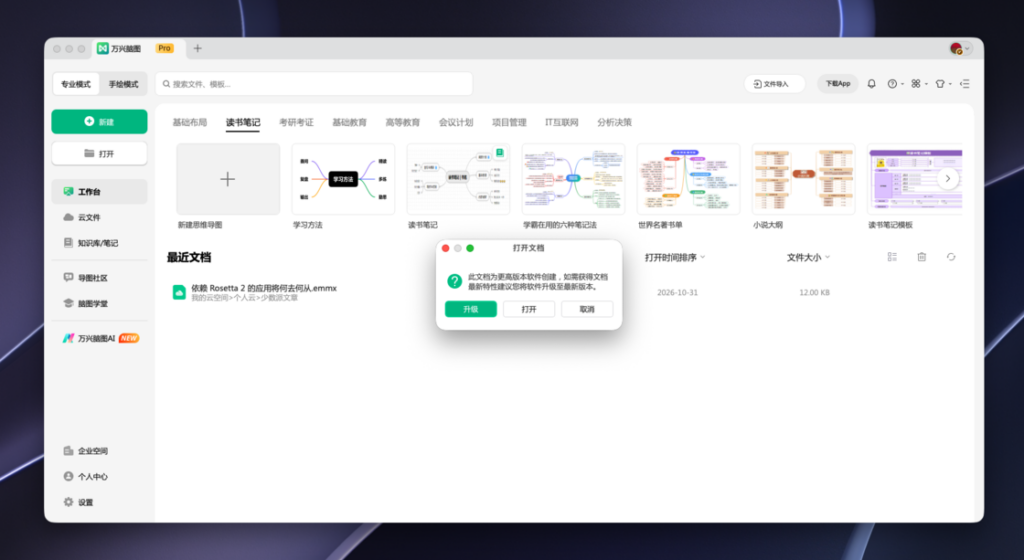
Instead of deploying a full virtual machine such as Parallels Desktop, you can now run Windows apps through a lighter translation layer—Tencent MyApp for Mac, for instance. It is built on Wine, the open-source compatibility layer, which means you could also just use Wine, or a Wine derivative, directly.
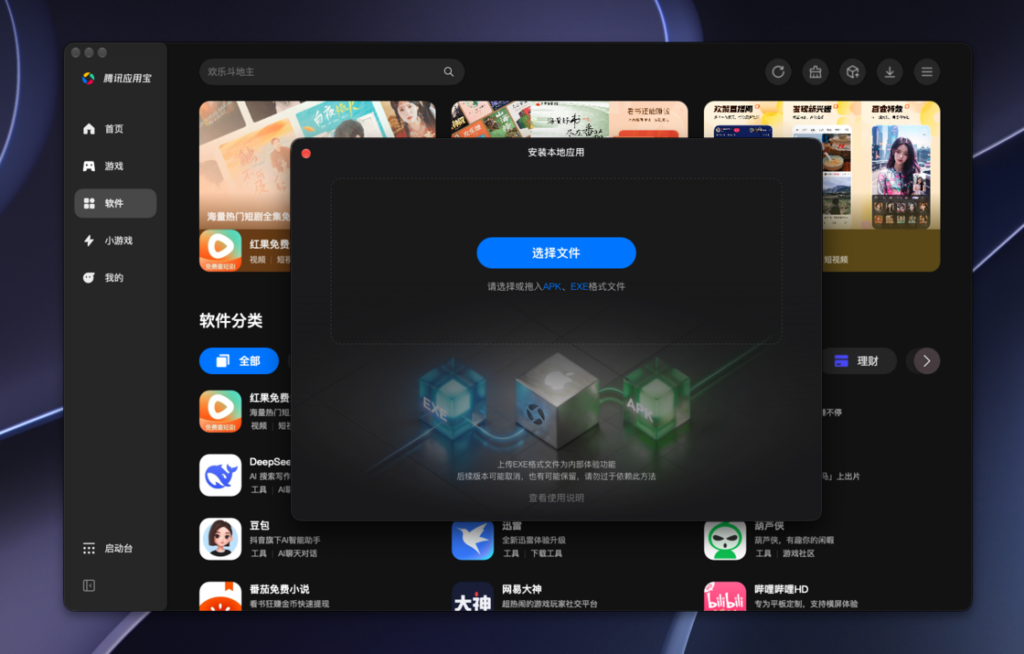
Launch MyApp for Mac, switch to Apps in the sidebar, click Local Install in the top right, and point it at the Windows installer for EdrawMind you prepared in advance.
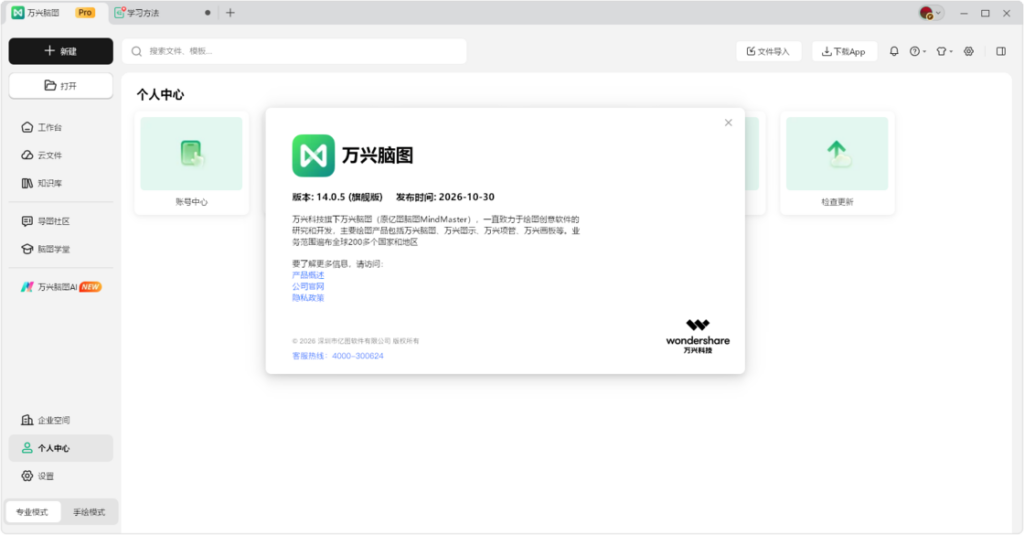
In practice the interface is identical to the Windows build, and adding nodes or rearranging branches is smooth. Because there is no full virtualization stack underneath, CPU and memory use stay low.
There is a catch, and it runs one layer deeper: MyApp runs on Wine, and most mature Wine builds still need Rosetta 2 to run on a Mac. The official builds have begun optimizing and experimenting with a native ARM64 Wine engine, but that work is still experimental.
Translation also leaves small rough edges. Chinese fonts in some Windows apps render less crisply, occasionally looking blurry, and window resizing is less flexible.
Conclusion
While I was writing this, the vendors that had sat out the native transition for six years suddenly shipped universal binaries around September 2026. Sonos and EdrawMind finally made the jump, and Alibaba’s Wuying cloud desktop, which I use daily, released an Apple silicon build. Combined with the three workarounds above, my Mac no longer has a single x86-64 app.
Beyond the three approaches here, what have you done to keep an x86-64-only Mac app usable on future versions of macOS? Share it in the comments.
Share:
Tags