
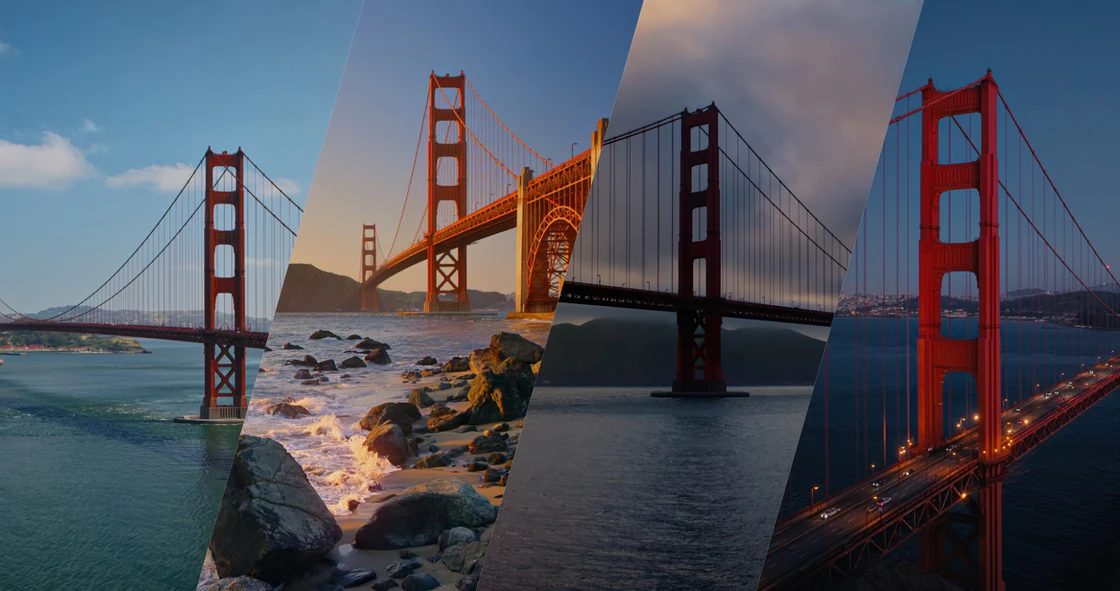
Apple films stunning aerial sceneries from sunrise to nightfall, but macOS treats them as static options. Aerial Switcher is an open-source menu bar utility that automatically rotates video wallpapers to match the time of day.
***
Editor’s note: A version of this article by 尹颍 (Yin Ying) appears on November 4, 2026 on SSPAI with the title “App+1|Aerial Switcher:给 Mac 的航拍壁纸排个时间表”. Translated and published by agreement.
There has always been an odd quirk with macOS’s built-in aerial wallpapers: Apple captures multiple time-of-day variants for iconic locations like Lake Tahoe, Sequoia National Park, and the Golden Gate strait. The Golden Gate scenery introduced in recent macOS releases, for instance, includes four distinct video segments: daytime, sunset, dusk, and night.
Yet in System Settings, they are treated strictly as independent, static options. If you choose sunset, you will still be staring at that same sunset when you flip open your MacBook the following morning.
It felt like a missed opportunity. If Apple already went through the trouble of shooting an entire location from dawn to dusk, why not let the desktop transition naturally as the day unfolds?
That frustration led to Aerial Switcher—a lightweight menu bar utility that automatically rotates macOS aerial wallpapers to match the clock.

From Dawn to Dusk
When you launch Aerial Switcher for the first time, a setup panel appears. After you select your preferred location, the app automatically checks for and downloads any missing high-resolution video files from Apple’s servers, then immediately transitions your desktop to the appropriate version for the current hour.

The default timetable transitions at:
- Morning: 06:00
- Day: 12:00
- Sunset: 17:00
- Dusk: 18:00
- Night: 21:00
Different scenery packs contain varying numbers of clips—Sequoia, for example, only provides morning, day, and night segments. Because fixed presets rarely fit everyone’s routine, Aerial Switcher includes an interactive 24-hour timeline slider. You can simply drag the milestone handles left or right to fine-tune transition times in 15-minute increments.
During short winter days, for example, you can easily pull the sunset trigger forward to 16:30.

Once configured, the app stays out of your way. It lives unobtrusively in the menu bar, with an icon reflecting the current time of day. Clicking it displays a countdown to the next scheduled transition, lets you switch scenery sets on the fly, or pause the rotation if you want to linger on a particular vista. If you decide to stop using it, toggling off automatic switching cleanly restores your original system wallpaper.
The app also performs an integrity check whenever your Mac boots, logs in, or wakes from sleep, ensuring transitions never fall behind schedule.

How macOS Wallpapers Work Under the Hood
Aerial Switcher originated as a personal command-line script invoked via make before eventually evolving into a polished menu bar app.
During development, I discovered that macOS offers no public, documented API for programmatically setting aerial video wallpapers. However, the system stores its active wallpaper configuration inside a property list:
~/Library/Application Support/com.apple.wallpaper/Store/Index.plistBy modifying the entries within this plist and sending a restart signal to WallpaperAgent, macOS can be instructed to load a different aerial video asset.
There is an important catch, however: macOS does not pre-cache every aerial video locally. If you instruct WallpaperAgent to switch to a video file that has not yet been cached to disk, the operating system will not trigger a background download—it simply falls back to a generic default wallpaper.
That is why automatic downloading had to be built directly into Aerial Switcher. The utility fetches missing video assets straight from Apple’s content delivery network and writes them to macOS’s native aerial cache folder. Because each high-definition aerial video can take several hundred megabytes, the initial download requires a brief wait.
To ensure your existing desktop setup remains intact, the app backs up your configuration before taking over management and restores it whenever automated switching is disabled. Any manual wallpaper adjustments you make in System Settings during everyday use are likewise respected.
Because these hooks rely on undocumented macOS internals, future major OS updates could potentially alter or break this behavior. Compatibility has been verified across recent releases, including macOS 26 and macOS 27.
Download and Installation
Aerial Switcher is open-source software distributed under the MIT license on GitHub.
You can grab the compiled release from the repository’s Releases page; installation is as simple as unzipping the archive (~2 MB) and dragging the app into your /Applications folder.
Note: The app is currently not notarized with an Apple Developer certificate. On first launch, macOS Gatekeeper may block execution. To open it, navigate to System Settings > Privacy & Security, scroll down to the security section, and click Open Anyway.
This project marks my first time packaging and releasing a native macOS tool for the community. While the feature set is focused and the interface has room for further polish, it has grown from a humble terminal script into a standalone utility.
Bug reports, feature requests, and feedback are welcome via GitHub Issues or in the comments below.
Share: