Tag: MacBook Air

  • MacBook Neo Hands-On: Apple’s Most Affordable MacBook Yet

    MacBook Neo Hands-On: Apple’s Most Affordable MacBook Yet

    Equipped with 8 GB of memory, 256 GB of storage, no fingerprint unlock1, a display that doesn’t support the P3 wide color gamut, and even powered by a chip originally used in smartphones—it’s hard to imagine this is a laptop released in 2026. Yet this is exactly what Apple’s long-anticipated new member of the Mac family looks like: the MacBook Neo.

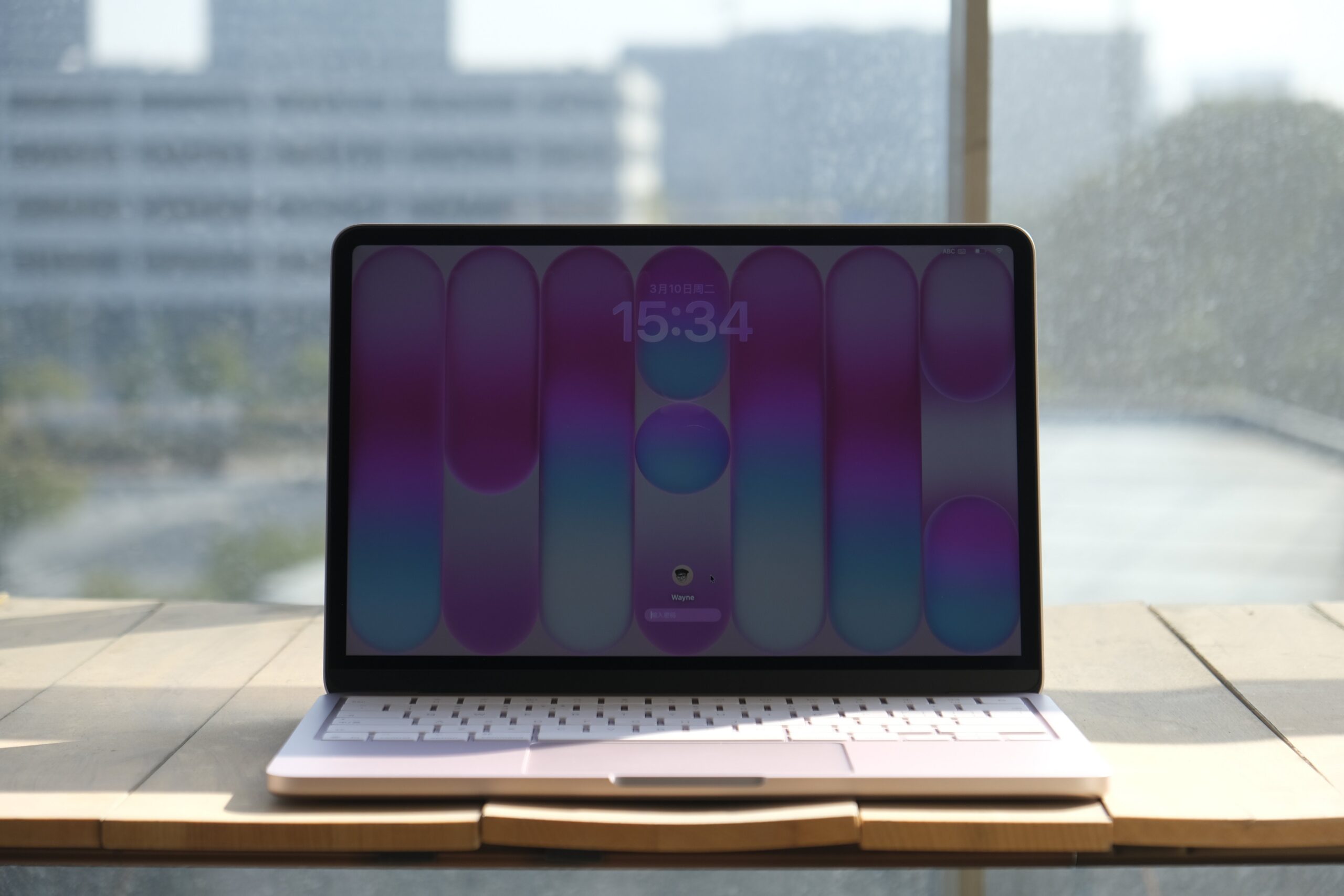
    Let’s start with the design. The MacBook Neo is one of the few Macs in recent years to feature a colorful lineup of finishes. It comes in four options: silver, peach pink, citrus yellow, and indigo blue. From the color choices alone, you can tell Apple put considerable thought into the visual identity of this new model.

    Take the peach pink unit I have on hand as an example. In addition to the unibody aluminum chassis finished entirely in pink, the keyboard has also been customized to match the device color. On the peach pink model, the keys have a subtle pink tint, and even the rubber feet on the bottom of the chassis are pink to complete the look.

    On the software side, beyond the exclusive matching wallpapers designed for the four color variants of MacBook Neo, Apple has also added a new option in System Settings under “Appearance” > “Theme” color called “This Mac.” Selecting this option automatically sets the system accent color to match the color of your current MacBook Neo. This option does not appear on other Mac models.

    When it comes to weight, many people had assumed that the long-rumored Mac equipped with the A18 Pro chip would revive the ultra-thin 12-inch display design. Instead, the MacBook Neo feels far more conservative than expected in its external design.

    The overall look of the MacBook Neo continues the family design language seen on the current MacBook Pro and MacBook Air, with slightly softer transitions along the edges. The device’s footprint is roughly comparable to a 13-inch MacBook Air, although the Neo is slightly smaller in both width and depth, resulting in a more compact body.

    When I first picked up the MacBook Neo at Apple’s launch event, I realized the device didn’t feel quite as light as I had imagined. The official specifications published later on Apple’s website confirmed this impression: although the MacBook Neo has a more compact footprint, it is actually 0.14 cm thicker than the similarly sized MacBook Air. The weight difference is minimal, but technically the Neo is slightly heavier as well.

    So if you were hoping for a brand-new Mac laptop that would push portability even further, the MacBook Neo might not meet that expectation. That said, this doesn’t mean the device isn’t portable. For daily commuting or carrying it around, it’s still a lightweight Mac notebook. The portability advantages that define the MacBook Air remain present here, and the colorful finishes might even make you more inclined to take it with you wherever you go.

    The MacBook Neo features a 13-inch Liquid Retina display with 500 nits of brightness. Unfortunately, whether for cost reasons or to differentiate it from other Macs, the display only supports the sRGB color space rather than the wider P3 color gamut. P3 offers broader color coverage and can produce richer, more accurate colors when viewing photos or working on design projects.

    You can watch Apple’s technical explanation video to better understand the advantages of P3 compared with sRGB, or try web tools such as Wide Gamut to see the visual differences between the two color spaces on a supported device.

    For reference only.

    That said, aside from this limitation, the MacBook Neo’s display still maintains Apple’s usual high standards. For most everyday usage scenarios, you likely won’t notice a significant difference compared with the displays on other Mac notebooks.

    The typing experience on the MacBook Neo’s color-matched keyboard feels identical to other Mac laptops. Whether it’s the key travel or the tactile feedback when pressing the keys, I couldn’t detect any meaningful differences. However, the situation changes once you move to the trackpad.

    If you’re familiar with Macs, you’ll know that both MacBook trackpads and Apple’s Magic Trackpad have long used the Force Touch system. This technology relies on pressure sensors to detect varying levels of force, while the Taptic Engine simulates the feedback of a physical click through precise vibration.

    The MacBook Neo, however, returns to a traditional mechanical trackpad design. The feedback experience is noticeably different. With Force Touch, the simulated click feedback feels tighter and more precise. With the mechanical trackpad, you can clearly feel the physical travel of the click, and the feedback isn’t quite as crisp. Personally, I still prefer the feel of the Force Touch trackpad.

    Fortunately, the trackpad on the MacBook Neo still supports most of the gestures and interactions found on modern Mac trackpads. You can perform nearly all the familiar macOS touch operations. However, there is one thing to note: because a mechanical trackpad cannot detect pressure, the single-finger force-click gesture used for look-up actions has reverted to the older three-finger tap method on the MacBook Neo.

    When it comes to ports, the MacBook Neo only includes two USB-C ports on the left side of the chassis, supporting USB 3 and USB 2 speeds respectively. The USB 3 port supports DisplayPort output, allowing you to connect an external monitor. You also don’t need to worry about mixing up the two ports—if you plug a high-speed external SSD into the slower USB 2 port, the system will automatically display a reminder. Finally, the MacBook Neo also includes a 3.5 mm headphone jack on the lower left side of the chassis, though it does not support high-impedance headphones.

    For audio, the MacBook Neo’s dual speakers are positioned along the lower sides of the device and support Dolby Atmos playback and spatial audio. In actual use, the multimedia performance is fairly good, but the overall sound layering feels somewhat thin. This is especially noticeable in the vertical soundstage, where the audio tends to feel more like it’s spread across a flat plane, lacking the depth found on other MacBook models.

    In terms of performance, the MacBook Neo is currently the only Mac that does not support configurable hardware options. Aside from choosing a color, the only customizable option is storage capacity. The combination of 8 GB of memory and the A18 Pro smartphone chip has also led many people to question its everyday performance and overall user experience.

    First of all, although the MacBook Neo uses the A-series chip originally designed for the iPhone, both the A-series and M-series chips share the same ARM architecture. This means you don’t need to worry about application compatibility. Whether it’s native macOS apps or iOS / iPadOS apps that support Mac, they all run smoothly on the MacBook Neo.

    The A18 Pro chip used in the MacBook Neo was originally introduced with last year’s flagship iPhone 16 Pro, and its performance is already at a desktop-class level. Based on several benchmark runs I performed on the MacBook Neo, the highest results I recorded were a single-core score of 3468 and a multi-core score of 8104. The single-core score actually surpasses the M3 chip, while the multi-core performance is noticeably weaker, roughly comparable to the M1.

    I also used the MacBook Neo to edit a 4K 60 fps video project composed of more than ten clips. The final video length was 1 minute and 40 seconds, and exporting the project took around 3 minutes and 30 seconds. During the editing process, whether manipulating the timeline or using more demanding features such as the magnetic mask, the MacBook Neo maintained a generally smooth experience. However, the waiting time during heavy processing was more noticeable compared with models equipped with higher memory capacity.

    The real pressure appears during the export phase. While exporting, switching windows, invoking Spotlight, or interacting with other applications resulted in noticeable stutters. Checking Activity Monitor revealed that Final Cut Pro and related video encoding services had already pushed the 8 GB of unified memory close to its limit, which in turn affected the overall multitasking smoothness of the system.

    There is no doubt that the A18 Pro chip in the MacBook Neo is fully capable of handling everyday video editing or running some less demanding games. For light creative work, performance itself is not the main issue. What truly limits the experience is the lack of headroom caused by the 8 GB of memory, especially during sustained high-load tasks such as exporting video.

    Although it may seem like I’ve pointed out many shortcomings of this new Mac device, most of those comparisons were made against existing Mac notebooks. The MacBook Neo was never intended to replace the MacBook Air or other models. Instead, its goal is to lower the entry barrier and bring the refined design and rich application ecosystem of macOS to more users.

    From its pricing and positioning, the MacBook Neo is essentially an entry-level laptop—what we might traditionally call a “netbook.” Yet this netbook offers better design, a stronger ecosystem, and better performance than many products in the same category.

    Especially in the current industry environment where memory prices continue to rise, many rumors suggest that more brands may reduce or even abandon entry-level laptop product lines in the future. Because of that, a product like the MacBook Neo actually feels quite rare.

    Of course, I wouldn’t recommend choosing the MacBook Neo impulsively unless you are already certain that it will meet your needs for the next two or three years. In my opinion, the MacBook Neo is a Mac with a very clearly defined target audience and usage scenario. For older family members, it’s a computer that is simple and reliable to use; for children, it could also serve as an excellent first Mac for exploring the world of computers.

    1. The MacBook Neo features Touch ID fingerprint unlocking exclusively on the 512GB storage model. The 256GB model includes a function key lock. ↩︎
  • From Retina Classics to the Future of Apple Silicon: Ten Years, Three Generations, and My MacBook Evolution

    From Retina Classics to the Future of Apple Silicon: Ten Years, Three Generations, and My MacBook Evolution

    Preface

    As someone entering middle age, I’ve already started to feel nostalgic.

    Before the iPhone, the Apple product that left the deepest impression on me was probably the MacBook. As the first computer I bought with my own money after starting work, my MacBook journey happened to span three distinct eras:

    • Astonishing & iconic: MacBook Pro with Retina (2014, 13-inch);
    • A performance beast: MacBook Pro with i7 (2019, 16-inch);
    • A chip-driven reinvention: MacBook Pro with M2 Pro (2023, 14-inch).

    Over the past decade-plus, the MacBook lineup has undergone dramatic changes. These weren’t just incremental hardware upgrades, but profound shifts in design philosophy, user experience, and ecosystem integration.

    A side-by-side look at the three MacBook Pros

    As my primary productivity tool, this piece isn’t merely a list of devices. It’s a decade of growing alongside the MacBook—a record of how I used it to move from being a reader to becoming a content creator.

    The MacBook Pro that travels with me on business trips

    Planting the Seed: MacBook Air

    Starting in 2006, Apple abandoned PowerPC and fully transitioned to Intel, ushering in a new era of collaboration between Apple and Intel.

    In 2008, Steve Jobs pulled a laptop out of a manila envelope in that now-legendary keynote moment. With its unibody aluminum design—so thin that even its thickest point was slimmer than competitors’ thinnest—it didn’t just stun the audience in the room. It also planted a seed deep in my heart.

    The Stunning Impact of Retina

    In early 2015, I bought my first Apple device: a 13-inch MacBook Pro with Retina (the base model).

    If the MacBook Air stood for thin and light, then this generation of the MacBook Pro with Retina represented balance. In terms of design, it carried on the unibody aluminum chassis, with an excellent build quality. By removing the optical drive and mechanical hard disk, Apple ensured a slimmer profile—far lighter and thinner than the laptops I used back in college. The glowing Apple logo on the lid remains a classic to this day.

    More importantly, it offered an exceptionally rich selection of ports: MagSafe magnetic charging, HDMI video output, an SD card slot, Thunderbolt 2, and two USB-A ports. It was a true “all-round productivity machine” that could handle almost any task without the need for a dongle.

    The display deserves special mention. Seeing a Retina screen for the first time was genuinely breathtaking, and even by today’s standards, it still holds up well. I remember a friend who had just bought a MacBook Air (non-Retina); after seeing my screen, they immediately regretted their purchase.

    With an Intel Core processor, a Retina display, plentiful ports, and a scissor-switch keyboard—paired with macOS’s clean interface, free from pop-ups and virus anxiety—it laid the foundation for my trust in the MacBook as a machine that is “open the lid and get to work,” stable and reliable.

    Thanks to the Thunderbolt 2 port, I also entered the era of a dual-monitor desk setup: the MacBook Pro as the main machine, connected to a Xiaomi 34-inch curved display, forming my version 1.0 desktop setup.

    My desk setup in 2019
    My desk setup in 2020

    A Small Interlude

    The Product I Most Hope to See Revived: the 12-inch MacBook

    The design of the 12-inch MacBook could be considered the pinnacle of Apple’s design at the time—and even today, it hardly feels outdated. Limited by its performance, however, it could only ever be a toy for a very small group of users. With the arrival of the M-series chips, which offer far better performance, thermals, and power efficiency, this line has become the product I most want Apple to bring back.

    A Monster and the Controversy

    A Leap in Performance and Intel’s Struggle

    As my work began to demand more performance, I upgraded to the 2019 16-inch MacBook Pro (i7 processor, 32GB RAM). There’s no denying it: at the time, this machine was a bona fide performance monster.

    From dual-core to six-core, from 13 inches to 16 inches—the performance jump was massive. Image editing times dropped dramatically, and running multiple virtual machines became effortless. This was Apple pushing the Intel-based MacBook Pro to its absolute limits.

    But constrained by thermal design, it also gave rise to the infamous “single heat pipe trying to tame an i9” moments—one of the reasons I opted for the i7 instead. Under heavy load, the chassis temperature would spike rapidly, and the fans would roar like a jet taking off, seriously affecting my focus while working.

    That said, the return of the scissor-switch keyboard, the excellent speakers, and Touch ID were all welcome highlights of this generation. On the downside, only Thunderbolt 3, USB-C, and the headphone jack remained. All other ports were cut—even staples like the SD card slot and HDMI—making external expansion a clear drawback.

    The Touch Bar was another source of controversy. Intended to replace physical function keys, it did bring novelty to certain applications, but ultimately proved to be a productivity hindrance rather than a help.

    While I fully acknowledge that the 16-inch MacBook Pro was a powerful, workstation-class machine, who could have imagined that in less than two years it would be replaced by ARM-based MacBook Pros?

    To better tame this performance beast and improve the overall experience, I chose the following accessories to build my desktop setups from version 2.0 to 3.0.

    • Thunderbolt 3 dock: a single cable to solve everything—connecting external displays while providing stable power and data transfer, greatly reducing the clutter of multiple cables on the desk.
    • Cooling: to address the high heat output of Intel chips, I initially placed the laptop on a stand. This not only raised the screen to eye level, reducing neck strain, but also helped with airflow. Still, passive cooling wasn’t enough for the i7, so I later added an active liquid-cooling solution. Even then, the results were far from ideal.
    My desk setup in 2021
    My desk setup in 2022
    My desk setup in 2023

    Reshaping and the Future

    In 2020, Apple kicked off its transition to the ARM platform.

    Fifteen years later, the Mac once again changed its chip architecture.

    For Apple, raw performance may not be the ultimate goal, but power efficiency and thermal control are areas where it refuses to compromise. During the years of collaboration with Intel, many Mac products suffered from overheating issues. With the rapid maturation of the ARM architecture, Apple could finally move it onto the Mac with confidence.

    People who are really serious about software should make their own hardware.

    Today, Mac chips are designed entirely by Apple. By integrating various functions onto a single chip, Apple not only reduces costs but also achieves tighter integration. In-house silicon enables Macs to work more seamlessly with other Apple devices, strengthening the ecosystem and breaking down barriers between products.

    The M-chip Revolution: A Cross-Generation “Dimensionality Reduction”

    Moving from Intel flagships to a MacBook Pro powered by the M2 Pro chip was nothing short of a generational leap.

    The most immediate sensation is “calmness.” Tasks that once sent fans into a frenzy can now be completed quietly and coolly by the M2 Pro. At the same time, it achieves a near-perfect balance between performance and battery life. Intel laptops used to feel like they lost their soul once unplugged; M-series Macs can deliver a full day of efficient work without ever touching a power outlet.

    In terms of design, Apple performed a kind of “course correction.” With a return to a more classic look, today’s MacBook Pro may not appear as thin and light as before—but the Pro line has always been a tool for professionals. Thinness was never the core of “Pro”; usability is. This return to practicality is the best interpretation of what “Pro” truly means.

    Compared to the Intel era, the return of MagSafe, HDMI, and the SD card slot—along with support for high-impedance headphones—signals that Apple has finally acknowledged the core, practical needs of professional users.

    The Mini-LED display delivers stunning contrast, and ProMotion’s high refresh rate turns every scroll and every viewing moment into a visual pleasure. As for the notch, that’s simply a matter of personal taste.

    After experiencing the size and weight of the 16-inch model, I decisively chose the 14-inch this time. It strikes a better balance between performance and portability—lighter than the 16-inch, yet more powerful than the 13-inch.

    As for this generation of desk setup, the guiding principle was “subtraction.” I removed all unnecessary accessories and upgraded the external display to an LG UltraFine 4K, aiming to match the color accuracy of the MacBook Pro’s built-in screen.

    My desk setup in 2024
    My desk setup in 2025

    MacBook and Apple Vision Pro

    At present, Apple’s MacBook lineup positioning is already very clear:

    • MacBook Air focuses on light productivity: 13-inch and 15-inch;
    • MacBook Pro targets professional use: 14-inch and 16-inch.

    There are rumors that in the spring of 2026 Apple will release a MacBook aimed at the education market, powered by an A-series chip and priced lower. If this model does arrive, Apple’s MacBook lineup will become even more complete and better aligned with different user needs.

    Apple Vision Pro

    With the release of Apple Vision Pro, it’s natural to ask: will it eventually replace the MacBook as the next-generation productivity tool?

    For MacBook users, Vision Pro brings qualitative improvements in several areas:

    First is the “infinite” and “mobile” nature of physical displays. Vision Pro offers the Mac Virtual Display feature, fundamentally redefining the concept of a workspace. While MacBooks are constrained by physical screen size, Vision Pro can project the Mac desktop onto a massive, adjustable virtual display—essentially letting you carry a top-tier 100-inch monitor with you at all times.

    Second is an upgrade in multitasking space. Traditional MacBook multitasking relies on Mission Control or switching between apps. In Vision Pro, the Mac desktop can exist as one window, surrounded by natively running web pages, email, or even 3D models. This hybrid layout of Mac + visionOS apps greatly enhances the intuitiveness of multitasking.

    Finally, Vision Pro naturally ushers in a shift in the “center of computation.” In the past, the MacBook was the computing core and the screen was merely for display. In the era of spatial computing, the MacBook gradually becomes a high-performance computing module without a screen. Users may no longer care about the MacBook’s display quality, brightness, or size, because the visual experience is taken over by the headset.

    Image generated by Google Gemini

    That said, the current Vision Pro experience is far from perfect: wearing comfort, the limited number of third-party visionOS apps, and the exploration of efficient input methods are all issues that still need to be addressed.

    So at this stage, the relationship between the two is more about coexistence and complementarity rather than direct replacement. The MacBook, with its powerful M-series thermal management and long battery life, is well suited for sustained, high-intensity workloads (such as code compilation or complex modeling), while Vision Pro focuses on delivering extreme visual presentation and spatial interaction.

    Epilogue

    My ten-year journey with the MacBook is also a microcosm of Apple’s shift from a hardware-spec arms race to an ecosystem built around in-house chips. We’ve lived through the golden age of the classic scissor-switch keyboard, the growing pains of the butterfly keyboard, and the struggles of Intel processors—only to finally arrive at the perfect triangle brought by Apple silicon: battery life, performance, and silence.

    For me, the core value of the MacBook has long gone beyond the simple combination of a screen and a processor. It represents a way of working that is efficient, stable, and aesthetically pleasing. That’s also why I’ve consistently held the MacBook in higher regard than the iPhone.

    Across these three pivotal evolutions over ten years, which generation of MacBook design or experience is your favorite? Feel free to share your own experiences in the comments.

  • New Stuff 228|What Have Minority Editors Been Buying Lately?

    New Stuff 228|What Have Minority Editors Been Buying Lately?

    Many readers are often curious about what the editors at SSPAI actually buy. Through the “Editors’ New Stuff” column, we hope to introduce the interesting gadgets and products that our team members have recently started using — and let them personally share what the experience of using these “new stuff” has really been like.

    Content Note: If any installment of the New Stuff column includes commercial content, it will be clearly marked as “Advertisement” within that entry.


    @Sideface: MacBook Air 13 (M4)

    • Reference price: ¥5599 (after government subsidy)

    My MacBook Pro (2017), after eight years of loyal service, has recently started showing its age—its fans spin up loudly and frequently, several butterfly-switch keys no longer pop back up when pressed, and even with a full battery, it lasts less than an hour once unplugged… All signs, loud and subtle, are telling me this old fellow is ready to retire.

    This year’s Double 11 wasn’t particularly exciting, but after browsing a few e-commerce platforms, I ended up buying an M4 MacBook Air base model on JD.com. After the subsidy, the actual price was ¥5599—roughly the same as an iPhone 17 standard model. The biggest reason I chose the base Air is that features that once required an extra ¥1500 upgrade—like 16 GB RAM—and the Retina display, which couldn’t even be added for extra money back then, are now standard across the entire lineup. Even the most entry-level configuration no longer has any significant compromises. The only downside is that the box contents are getting increasingly minimal: no Apple stickers this time, though thankfully the 30W charger is still included.

    As one device replaces another, eight years have passed, and the MagSafe charging port, long-travel keyboard, and physical function row that were once removed have gradually returned—along with the somewhat awkward notch. Meanwhile, the once-trendy butterfly keyboard and TouchBar have quietly faded out with the rise of the M-series chips. For a true productivity tool, practical, durable, and easy to use matters far more than quirky innovation.

    What I’m not entirely used to with this generation of Air is the shift from the wedge shape to a chunky rectangular slab. Whether visually or in hand, it just doesn’t feel that “Air.” Especially the top lid—so flat it lacks even a hint of curvature. Every time I glance at it, I mistake it for a 15-inch model. Holding it feels contradictory as well: it looks thick and heavy, yet feels surprisingly light. And while the black finish does attract fingerprints, it’s undeniably gorgeous.

    Since the chips are different and my old laptop had accumulated a messy amount of files, I skipped migrating data and set up this Air as a brand-new device. Right after activation, the first thing I did was disable auto-update to keep macOS on version 15.6—preserving the now-discontinued Launchpad layout. Then I went to Settings → Accessibility → Display, turned on Reduce Transparency, and enabled Dark Mode so the black status bar blends nicely with the notch.

    This is my first time using an M-series MacBook, and what surprised me most is that it can install iOS apps. I’ve been working on an article about the “HarmonyOS Star River Interconnection” iOS client, and on my Intel-based Pro, the App Store simply showed it as unsupported. The next day, I switched to the M-series Air, and suddenly the previously greyed-out button became a clickable Install—which felt pretty novel.

    As for battery life—a major factor in my decision to upgrade—I’ve heard that M-series MacBooks can last an entire day unplugged. I haven’t used mine long enough to confirm this yet, but I’ll need more time before reaching a verdict.

    @Microhoo: Osmo Action 6

    • Reference price: ¥2998

    The iPhone 17 series introduced a square front-facing sensor, enabling full-frame vertical capture without sacrificing image quality—a design that’s both practical and innovative, and quickly became a fan-favorite. Watching the keynote, the first thing that came to my mind was the 1/1.1-inch square sensor on the Osmo 360. If square sensors help simplify dual-lens stitching on 360° cameras, then for action cameras—devices that should never be constrained by orientation—a square sensor makes even more sense.

    Unsurprisingly, that very sensor has now made its way into the Osmo Action 6. You no longer have to rotate the camera just to shoot vertical video; you’ll always get full-quality footage regardless. For an action camera that relies heavily on mounting accessories, flipping the camera isn’t just inconvenient—it’s often physically impossible due to how accessories are designed.

    With aspect ratio locked, your footage remains consistent no matter how you orient the camera.

    But vertical video is only one “convenience” brought by a square sensor. The real advantage shows up in stabilization and flexible cropping. We all know image stabilization is the defining strength of action cameras and a key factor in any comparison. But stabilization isn’t “free”—digital stabilization works by cropping the edges of the frame, sacrificing some field of view. Even if you maintain the same viewing angle, digital stabilization still has a physical limit. A square sensor, with larger surface area for the same diagonal size, widens that limit and gives stabilization more room to breathe.

    And flexible cropping means you can choose horizontal, vertical, or any aspect ratio you need after shooting. Especially in extreme sports like cycling or diving—where it’s often difficult to predict your final output format—free-crop mode captures as much as possible so you can compose later without regrets.

    Alongside the square sensor, the other major upgrade on the Osmo Action 6 is the new F2.0–4.0 variable aperture. Action cameras have a unique trait: they’re fixed-focus. This requires smaller apertures for sharpness across the frame, but bright apertures are still crucial—especially for low-light imaging, the Achilles’ heel of action cams. The variable aperture solves this physically: a wide aperture for cleaner night shots, and a smaller one for daytime sharpness and controlled motion blur.

    To complement the larger aperture, DJI also introduced a new macro lens accessory. Once attached, it locks the aperture at F2.0 and shortens minimum focus distance to 11 cm, giving depth-of-field effects traditional action cameras simply can’t achieve. But where I think it shines most is in night shooting. I’ve never liked the “Super Night” computational mode—it brightens the scene and reduces noise, sure, but looks overly processed and imposes limits on resolution, stabilization, and Log compatibility.

    When shooting in normal mode—especially if you want to maintain proper ISO and shutter speeds—aperture becomes the single most important variable. Since the default manual mode tops out at F2.6, the macro lens becomes incredibly useful by allowing F2.0 throughout the shot. Here’s a quick demonstration of brightness differences between F2.0, F2.8, and F4.0 under fixed ISO and shutter:

    Square sensor and variable aperture are the two upgrades I find most meaningful on the Action 6, but realistically, their improvements are incremental on paper. So if your only question is: “Is the Action 6 a massive leap over the Action 5 Pro?” then the discounted previous generation might offer better value.

    But if you have specific shooting needs and care about image quality, the Action 6 is arguably a milestone product in the action-camera category—a device that establishes a new technical direction for action cams aiming at professional workflows, while retaining the classic form factor.

    Especially now, when smartphone video quality is soaring and thumb-sized “micro cameras” are quickly gaining traction, action cameras face an increasingly awkward position. In this context, the Action 6 feels like a bold self-reinvention. I’m genuinely curious to see how the Action series will build upon these optical foundations to hold its ground in future generations.

    @Lotta: Tidying Time

    • Reference price: ¥29.7

    A cozy simulation game that had been teased for a year or two finally launched on Steam last week. A friend thought I’d like it and grabbed it for me while it was on release discount. I was initially drawn in by its adorable art style, though I assumed the gameplay would be monotonous. But once I actually started playing, I got unexpectedly hooked—telling myself “just one more level” while blasting through twelve in a row.

    The core gameplay is all about sorting and placing: turning messy gray items into “lit-up” ones, categorizing them, and arranging them neatly in each scene. Following the little black cat, you progress through 20 levels—pet supply shop, a travel vlogger’s window nook, student dorm room, office desk, private kitchen, refrigerator, and more—no two scenes are repeated.

    Between levels, short dialogue-driven story bits reveal what’s going on with each scene’s owner. The environments are impressively detailed: a breakfast cart with a QR payment code, childproof outlet covers in a nursery, travel gear with long/short camera lenses, lens caps, lens pouches… Even every book and magazine has its own title. Every object comes with a brief description.

    This design has pros and cons. On the plus side, it makes immersion easy and the experience richer; on the downside, the gameplay can feel repetitive when you’re placing every single egg back into its carton or fitting every steamed bun into its basket. And each time you start a level and see that mountain of clutter, there’s a moment of panic—but finishing the arrangement brings real relief and satisfaction… before you voluntarily dive into the next level (panic all over again).

    So whether it counts as a “relaxing” game depends on the player. But as something to play casually during small breaks, it’s genuinely fun. Each level includes three hidden-object achievements triggered by placing special items correctly (e.g., placing a car key into the car). Beyond that, placements are not restricted—anywhere in the scene counts as long as everything is inside. You can breeze through by tossing things anywhere, or carefully design your own layout. A great pick for players who enjoy decorating in Animal Crossing.

    @Tp: “Moonlight Zoo” Concert Tickets

    • Reference price: ¥780 × 2

    After wrapping up the Twenty Years, One Moment tour earlier this year, Sodagreen’s pianist Gong Yuchi not only released his second solo album The Moonlight Zoo, but also began a concert tour of the same name in November. Both the album and the tour are rooted in his longing for his departed pets—imagining a “Moonlight Zoo” where all lost animals could find their way home again.

    During the album’s pre-release phase, several tracks were revealed in advance. Among them, “The Moonlight Zoo” and “Stairway To Light” left a particularly strong impression on me from the very first listen. So while preordering the album, I also made up my mind to attend the Guangzhou stop of the concert tour.

    Perhaps because concerts (as opposed to pop concerts) are more niche, the ticket-buying experience was unbelievably smooth—I got two ¥780 VIP tickets without any trouble. The seats were dead center, which made the overall experience fantastic. When the performance ended past 10:30 p.m., I still felt a lingering sense of wanting more.

    The thematic execution of this concert was truly impeccable. The stage was decorated with silhouettes and lighting inspired by various animals, creating the atmosphere of a “zoo.” Gong and the string ensemble performed as if surrounded by these shadowy creatures. Lighting effects shifted to express different moods and scenes, drawing the audience powerfully into the story. The opening track even featured a burst of light that radiated from the center of the stage outward—it felt as if we were stepping into a time tunnel and truly entering the “Moonlight Zoo.”

    Between pieces, a simple narrative unfolded through dialogues between Gong and a little dog, giving the entire concert the charm of an old-school Disney animation: a warm, straightforward storyline paired with beautiful classical arrangements, like a fairytale dedicated to pet lovers. Every audience member received a random wristband printed with an animal, symbolizing that we were all visitors to this magical zoo. During the song-request segment, requests were made based on the animal on your wristband—it was a delightful touch.

    I drew a deer and a penguin

    Since we bought VIP tickets, we received not only the program booklet but also an extra signed card—something genuinely meaningful as a keepsake.

    Before entering, I worried I might get sleepy during the show. But the moment the very first note sounded, I was instantly pulled into this “Moonlight Zoo.” By the time I checked my watch at the final bow, I couldn’t believe that two and a half hours had passed so quickly.